Change product status in bulk
Edify can set many products to Active, Draft, or Archived at once. For example, you can archive last season's products or publish a batch of drafts.
Change status
- Open Bulk Edit. Or click Change product status on the Dashboard, which opens Bulk Edit with Status and Active already picked.
- Under What to edit, choose Products.
- Add filters for the products you want, for example Status is Draft plus Tag is New arrivals. See Choose which products to edit with filters.
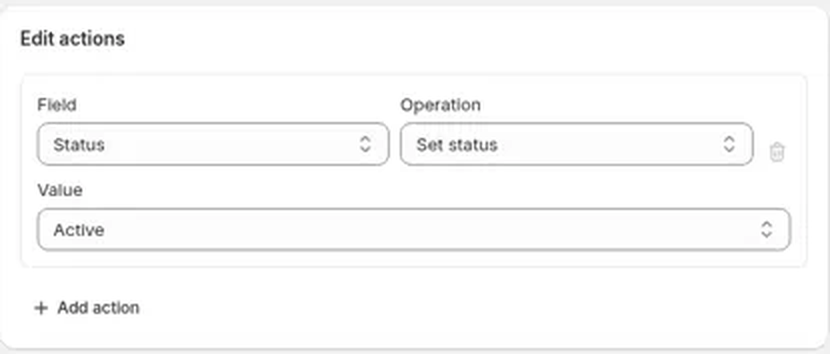
- In Edit actions, set Field to Status. The operation is Set status.
- In Value, pick the status you want. It starts on Active, so to set products to Active you can leave it as it is.
- Type a Task name and check the Preview. Products whose status will change show a badge such as 1 change. Click one to see its old status → new status, for example Draft → Active.
- Click Run now or Schedule.
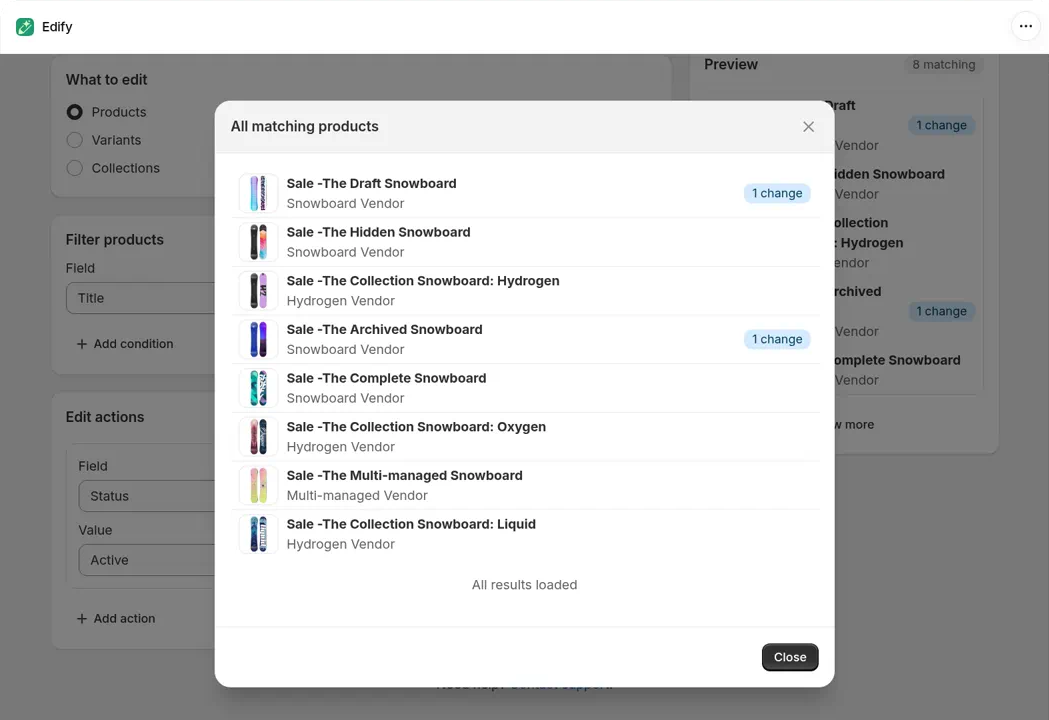
Value left on Active. Only the draft and archived products will change, so only they have a badge.
What each status means
- Active: the product is available on the sales channels it's published to.
- Draft: the product is hidden from customers while you work on it.
- Archived: the product is hidden and moved out of your active product list.
Good to know
- Products that already have the status you pick aren't changed. They have no badge in the Preview, and in History they say Already up to date, nothing changed.
- If a task completes but the status didn't change, see Status didn't change after my edit.
- Want products live only for a while? Schedule the edit and turn on auto-revert. See Schedule an edit and revert it automatically.
- To undo, revert the task from History. See View history and undo an edit.