Status didn't change after my edit
If a Set status task shows Completed but some products kept their old status, one of these is usually why.
The product already had that status
Edify only changes products whose status is different from the one you pick. Setting Active on a product that's already active changes nothing.
To check, open History and click the task name. In Changes, a product that already had the status says Already up to date, nothing changed. Before you run, the Preview shows the same thing: those products have no badge.
It's an older scheduled task
A Set status task saved before Edify's October 8, 2026 update, with Value left on Active, runs without changing anything. Its Actions line in the task details ends at Status → Set status, with no status after it.
- If it's still Scheduled, click Cancel in History, then schedule it again.
- If it already ran, set up the same edit in Bulk Edit and run it again. You don't need to revert the old task, since it didn't change anything.
New tasks always save the status shown in Value, including the default Active.
Check what a task did
In History, click the task name.
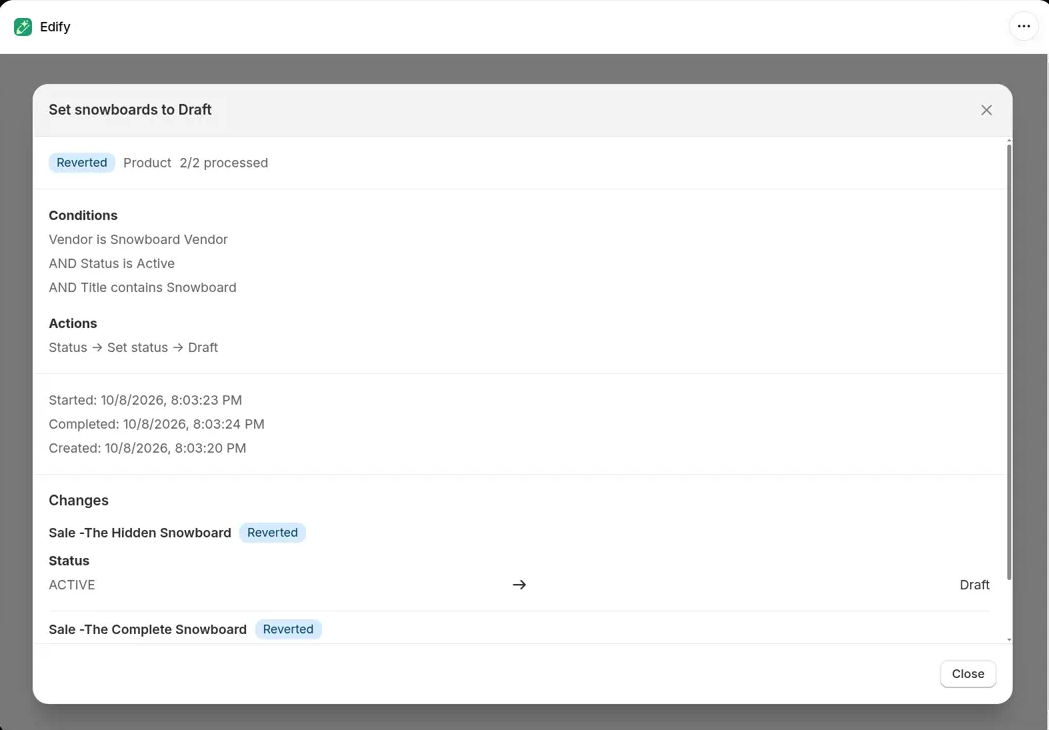
- Under Actions, the line ends with the status you picked, for example Status → Set status → Active or Status → Set status → Draft.
- In Changes, each product the task edited shows its old status → new status, for example Active → Draft. Tasks run before the October 8, 2026 update show the old status in capitals, such as ACTIVE → Draft, as in the example below.
Related
Still stuck? Message us from the chat in the app and we'll help.