Edit product descriptions in bulk
Edify can replace, add to, or update the description of many products (or collections) at once. For example, you can add a shipping note to the end of every description in a collection.
Edit descriptions
- Open Bulk Edit.
- Under What to edit, choose Products. For collection descriptions, choose Collections.
- Add filters for the items you want. See Choose which products to edit with filters.
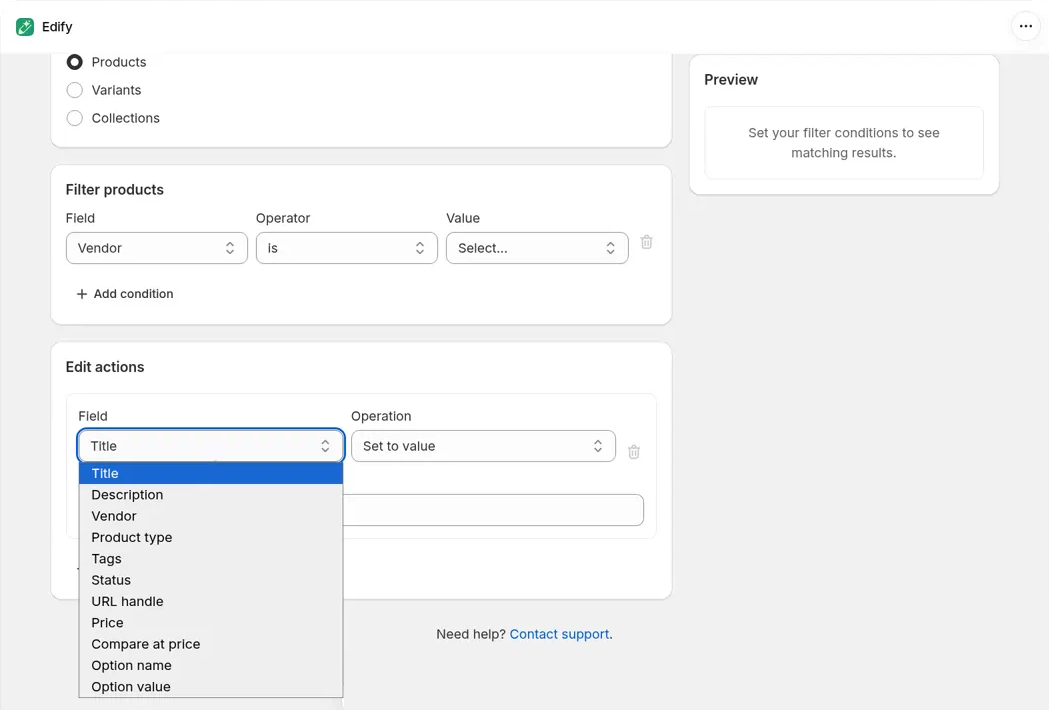
- In Edit actions, set Field to Description.
- Pick an Operation (see below) and fill in the text.
- Type a Task name, check the Preview, then click Run now or Schedule.
Which operation to use
| You want to | Use |
|---|---|
| Replace the whole description | Set to value |
| Add a line before or after the current text | Add text to start or Add text to end |
| Update a word or phrase | Find and replace |
| Delete a word or phrase | Remove text |
Change capitalization is also available, but it changes the whole description, so use it with care.
Good to know
- Set to value replaces everything in the description, including any formatting or images inside it.
- Find and replace is case-sensitive. "Free shipping" doesn't match "free shipping".
- Descriptions are saved with their formatting. If a phrase is partly bold or broken across lines, Find and replace or Remove text may not match it.
- Test on one product first with Title is equal to that product's title. Then open the task in History and check the old → new description in Changes.
- Click a product in the Preview to see its old → new description before you run. If Find and replace shows no change, the text wasn't found. See Preview doesn't show a change for an item.
- To undo, revert the task from History. See View history and undo an edit.