Rename variant options in bulk
Edify can rename product options, such as Colour to Color, and option values, such as Grey to Gray, across many products in one task. Renames work with Products under What to edit.
Rename an option name
- Open Bulk Edit. Under What to edit, keep Products.
- In Filter products, set Field to Option name, Operator to is equal to, and Value to Colour. This picks every product with a Colour option.
- In Edit actions, set Field to Option name. The Operation is Rename.
- In Current name, type Colour. In New name, type Color.
- Type a Task name and check the Preview. Click a product to see Option name Colour → Color.
- Click Run now, or click Schedule to run it later.
Shopify renames the option on each product, and its variants show the new name.
Rename an option value
- In Bulk Edit, keep Products and filter the products, for example Option value is equal to Powder.
- In Edit actions, set Field to Option value. The Operation is Rename.
- In Current value, type Powder. In New value, type Deep Powder.
- Optional: in Only in option, type the option to limit the rename to, for example Color. Leave it empty to rename Powder in every option of the product.
- Type a Task name and check the Preview. Click a product to see Option value · Color Powder → Deep Powder.
- Click Run now or Schedule.
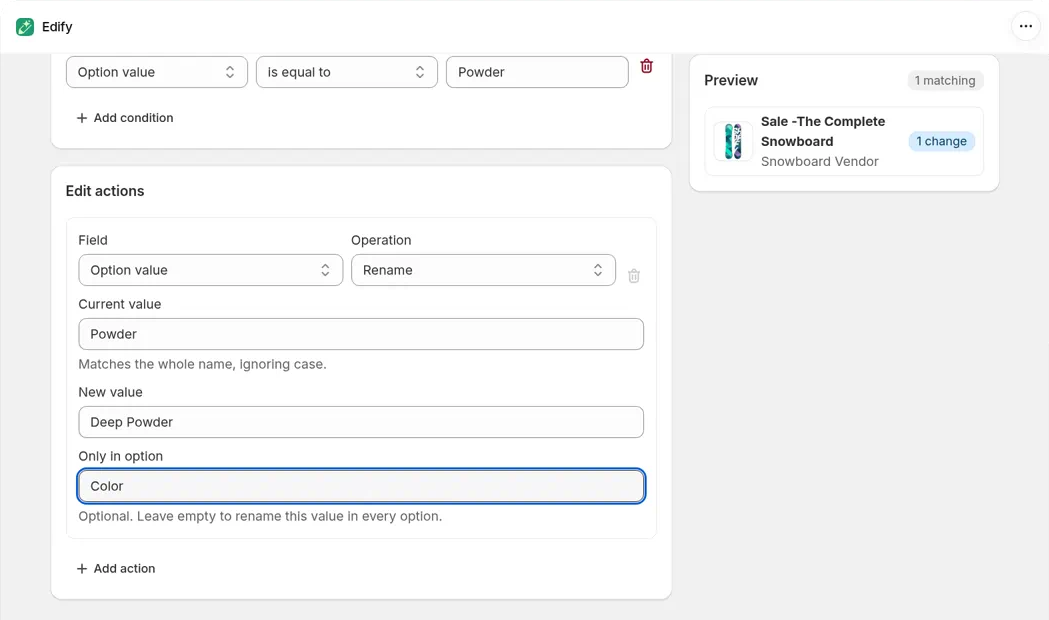
A value rename limited to the Color option: Powder becomes Deep Powder.
How names are matched
- Current name and Current value must match the whole name. Case doesn't matter, and spaces at the start or end are ignored. Colour matches colour and COLOUR, but not Colourway, and Gre doesn't match Grey.
- Only in option also ignores case. Products with no option by that name aren't changed.
- Products without a matching name aren't changed. They have no badge in the Preview, and in History they say Already up to date, nothing changed.
- Both the current and the new name are required. If either box is empty, Edify marks it This field is required and doesn't start the task.
Chain several renames
Click Add action to add more renames to the same task. They run in order, from top to bottom, and each one starts from the result of the one above it.
For example, to rename the option and one of its values together:
- Option name, Rename: Current name Colour, New name Color.
- Option value, Rename: Current value Grey, New value Gray, Only in option Color.
The second action uses the new name, Color, in Only in option, because the first action has already renamed the option by then.
If two renames change the same value, for example Grey → Gray and then Gray → Slate, the Preview and History show one line, Grey → Slate. You can also combine renames with other actions, such as Add tags. See Run several edits at once.
Preview, History, and revert
- In the Preview, each renamed option name and each renamed value counts as one change. Renaming the Colour option and its Grey value shows 2 changes. See Preview changes before you apply them.
- In History, the task's Changes list the same lines, such as Option name Colour → Color and Option value · Color Powder → Deep Powder. The task's Actions show what you asked for, for example Option name → Rename → Colour → Color.
- Revert puts the old names back on the same options and values. See View history and undo an edit.
- If Shopify refuses part of a product's edits, the product is marked Failed but still lists the edits that were saved, and Revert undoes them too. See When a product already has the new name below.
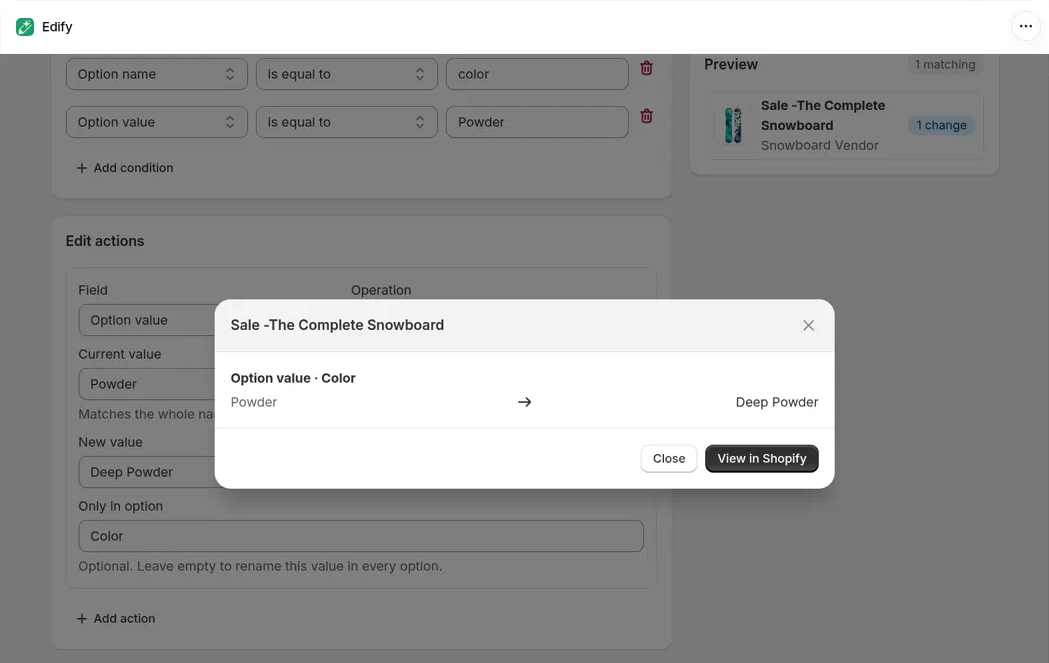
Click a product in the Preview to see each rename. The label shows which option the value belongs to.
When a product already has the new name
Shopify doesn't allow two options, or two values in one option, with the same name. For example, renaming the value Ice to Dawn fails on a product whose option already has Dawn.
- That product is marked Failed in History, with Shopify's reason in plain words, such as Option value already exists.
- The other products in the task are still renamed.
- Edits already saved to that product stay, and History lists them. Edify saves a product's own fields first, such as its title, then variant prices, then option renames one option at a time. So when a rename is refused, a title change, a price change, or a rename in an option before it may already be saved. The reason then starts with Only the changes listed here were saved. Shopify rejected the rest:, and Changes shows only the saved edits.
- Revert undoes those saved edits along with the rest of the task. See View history and undo an edit.
Filter by option name or value
Option name and Option value are filters in Products mode, with the operators is equal to, is not equal to, contains, and starts with. They ignore case, and Option value looks at the values of every option.
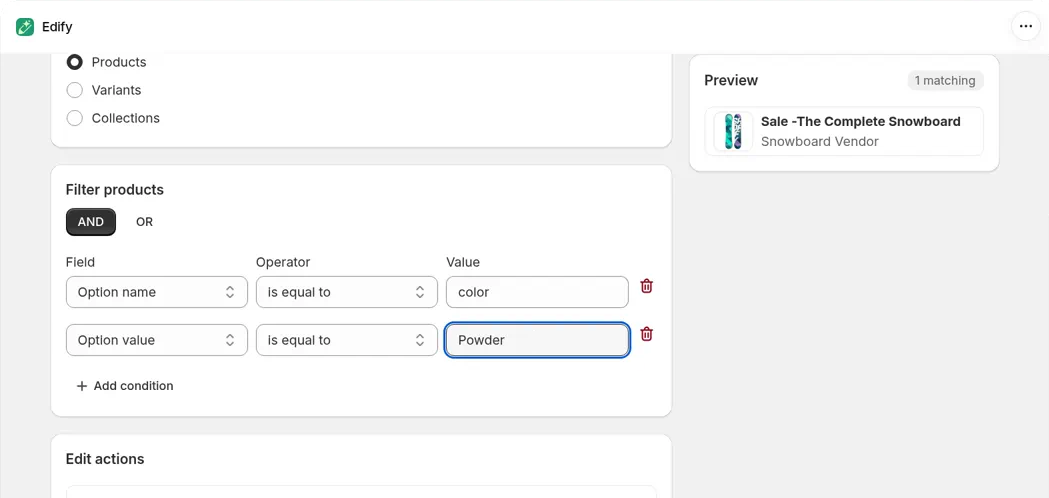
Option name is equal to color matches the Color option, because case doesn't matter.
You can't combine them with OR. If you try, a red banner at the top of Bulk Edit says Option filters can't be combined with OR. Switch to AND. See Choose which products to edit with filters.
Not supported yet
- Adding or removing options or option values.
- Creating or deleting variants.
- Option filters and renames in Variants mode.