View history and undo an edit
Every edit you run or schedule is saved in History. From there you can check its progress, see the old and new value of every field it changed, and undo it with one click.
Find a task
- In Edify, open History.
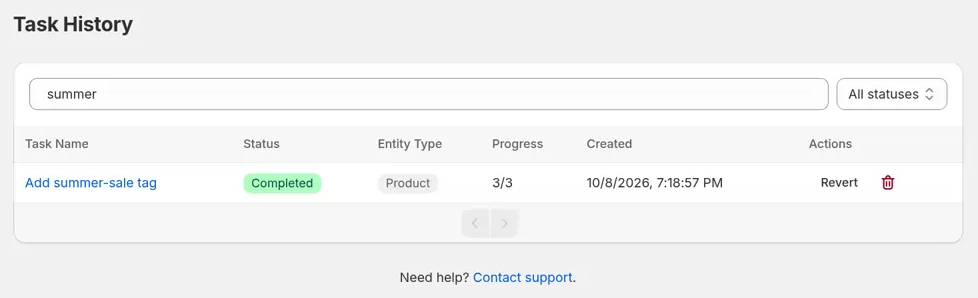
- Type in Search by task name, or pick a status in the All statuses filter.
Each row shows Task Name, Status, Entity Type (Product, Variant, or Collection), Progress, Created, and Actions. The list refreshes on its own while tasks run.
See task details
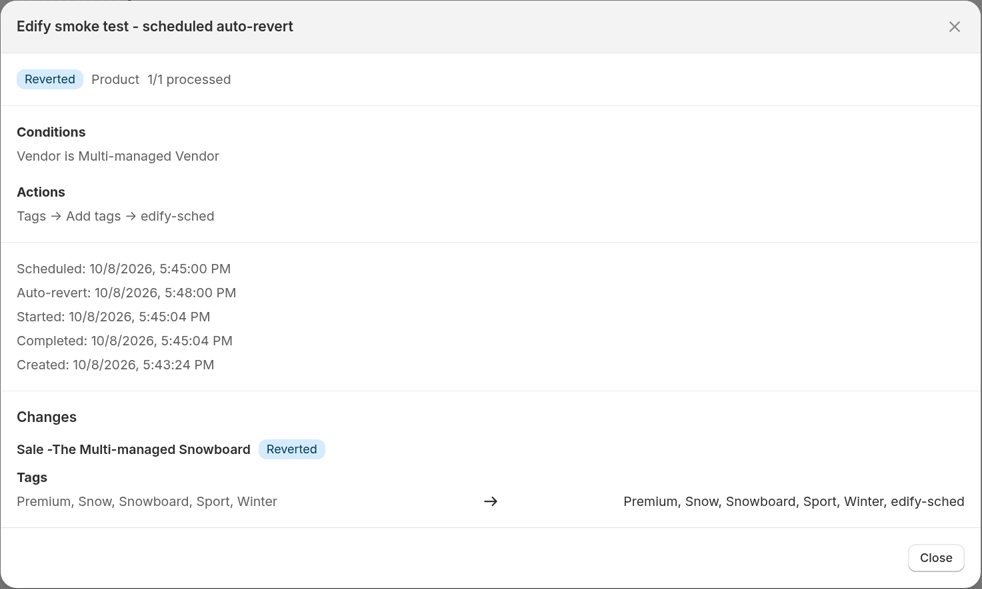
Click a task name. A window opens, titled with the task name. It shows the task's status, how many items were processed, the Conditions (filters) and Actions it used (for example Tags → Add tags → summer-sale), and when it was created, started, and completed. For Find and replace and Rename, Actions show the text to find and its replacement, for example Title → Find and replace → Snowboard → Board or Option name → Rename → Colour → Color.
For a task you scheduled, the details also show Scheduled with the run time. If you turned on auto-revert, they show Auto-revert with the revert time too, both in your store timezone. These lines stay after the task runs and after it's reverted.
If a task failed before it edited anything, a red banner at the top of the details says why, for example that a filter couldn't be applied.
When a task has more than one condition, the details show AND or OR between them, so you can see whether items had to match all conditions or any of them. See Choose which products to edit with filters.
See old and new values
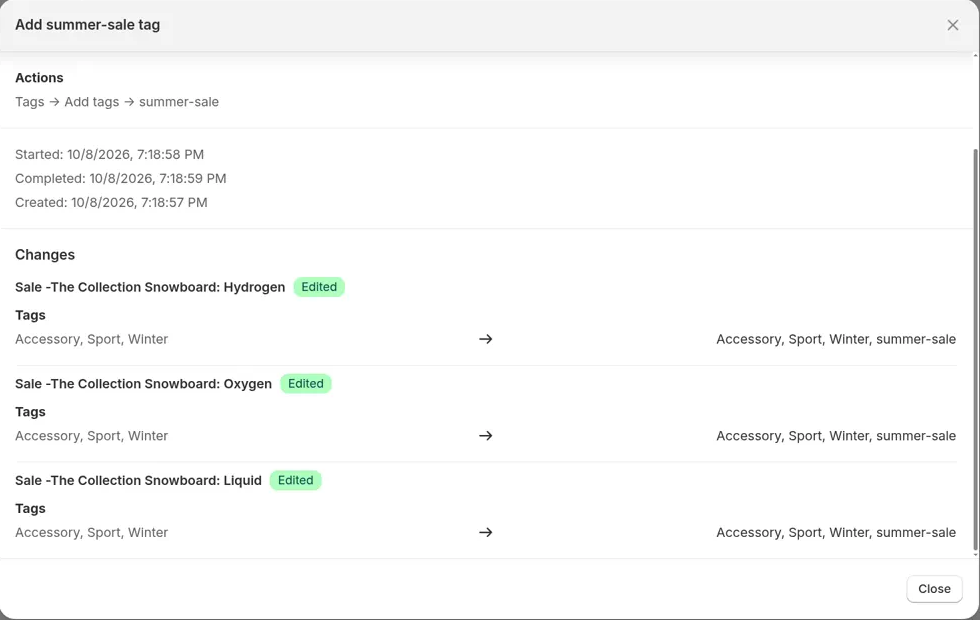
The Changes section at the bottom of the task details lists every item the task touched.
- In History, click the task name.
- Scroll to Changes.
- Find the product or variant. Each item has a status badge: Edited, Failed, Reverted, or Pending.
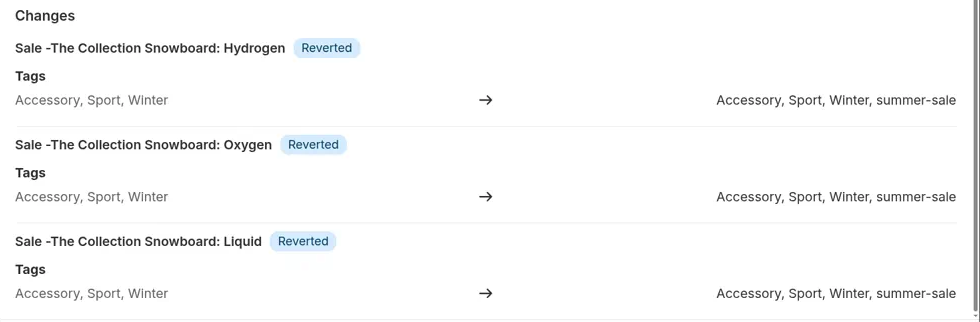
- Under the item, each changed field shows its old value → new value, for example Tags Accessory, Sport, Winter → Accessory, Sport, Winter, summer-sale.
- Items are shown 20 per page. If there are more, use the arrows at the bottom (next to a label such as Page 1 of 3) to move between pages.
Good to know:
- If an item already had the new value, it says Already up to date, nothing changed.
- Changes lists only what the task actually changed. For example, when a task rounds or increases Compare at price, variants with no compare-at price are skipped and not listed. If none of a product's variants changed, the product says Already up to date, nothing changed.
- A Failed item shows the reason in plain words, such as Option value already exists. If it saved some of its edits before Shopify refused the rest, it still lists them. See When Shopify refuses part of an edit below.
- An empty value shows as a dash. Long values are shortened, and descriptions are shown as plain text without formatting.
- A task that hasn't edited anything yet, such as a scheduled one, says No items have been edited yet.
- Variants are listed with the product name first, for example Blue Shirt - Small, or Blue Shirt - Default Title for a product with no options. Variant tasks run before this was added keep their old names, which show only the variant (such as Default Title).
- When a task has several actions on the same field, that field gets one line, from the original value to the final value.
- Option renames are labeled Option name, or Option value with the option it belongs to, for example Option value · Color Grey → Gray.
- Charge tax shows Yes or No, for example Charge tax Yes → No. Status shows the status name, such as Draft → Active. Tasks run before the October 8, 2026 update may show the old status in capitals, such as ACTIVE.
- When a Products task changes prices, each variant gets its own line under the product, labeled with the field and variant name, for example Price · Small (or Price · Default Title for a product with no options).
When Shopify refuses part of an edit
In Products mode, Edify saves each product in steps: its own fields first (such as title, tags, or status), then variant prices, then option renames, one option at a time. If Shopify refuses a later step, the earlier steps are already saved. For example, a task that changes the title and renames an option value keeps the new title even if Shopify refuses the rename.
When that happens:
- The product's badge is Failed.
- Its reason starts with Only the changes listed here were saved. Shopify rejected the rest:, followed by Shopify's message, for example Option value already exists.
- Under it, each saved edit shows its old value → new value. Edits Shopify refused aren't listed.
- In Progress, the product counts as failed. The task is still Completed, so you can revert it.
- Revert undoes the saved edits along with the rest of the task.
If Shopify refuses the first step, nothing is saved for that product, and it shows only the reason. In Variants and Collections mode, each item is saved in one step, so it's either edited or not.
Tasks run before the October 9, 2026 update don't list partly saved edits, and Revert can't undo them.
Undo an edit
- Find the task and click Revert.
- In the Revert bulk edit dialog, click Revert to confirm.
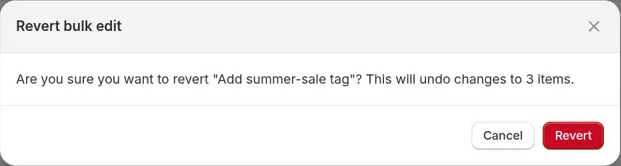
Edify puts back the values each item had before the task ran (the old values in Changes), including each variant's price, compare-at price, and Charge tax setting, and the old option names and values. The task status changes to Reverted and the Revert button turns gray.
In the task details, each item's badge changes to Reverted. The old value → new value lines stay as they were, as a record of what the task changed. After a revert, the item has its old value again.
- Revert undoes the whole task at once, including every action in it. You can't undo single products.
- A task run before October 8, 2026 with two actions on the same field shows one line per action, and reverting it may not put back the original value. Check those items after you revert.
- The number of items in the Revert bulk edit dialog counts only items marked Edited. Items that saved part of their edits aren't in that number, but Revert undoes them too.
- If some products were deleted in Shopify after the edit, they can't be restored. The task shows Partially Reverted.
- Items that failed without saving anything stay Failed after a revert, so the task also shows Partially Reverted and its details say some items could not be reverted. Nothing was changed on those items, so there was nothing to undo.
- You can revert Completed tasks only. Failed, Cancelled, and already reverted tasks can't be reverted.
- When some items fail, the task is still Completed if any item was edited or saved part of its edits. It's marked Failed only when none of them saved anything.
Cancel or delete a task
- Cancel stops a task that is Scheduled or Pending before it runs.
- The trash icon deletes a task from your history. Deleting doesn't undo its changes, so revert first if you need to.
Statuses
| Status | Meaning |
|---|---|
| Scheduled | Waiting for its Run at time |
| Pending | Queued. If another task in your store is still finding its items, this one waits its turn |
| Processing | Editing items now |
| Completed | Finished, and you can revert it. If some items failed, Progress shows how many |
| Failed | Nothing was saved: no item could be edited, or a filter couldn't be applied. The task details show why |
| Reverted | The changes were undone |
| Partially Reverted | Some items couldn't be restored, or some had already failed when the task ran |
| Cancelled | Stopped before it ran |
Edify keeps tasks in History for 180 days.