Bulk edit prices and compare-at prices
Edify changes prices and compare-at prices for many products or variants at once. You can set a new price, raise or lower it by an amount or a percentage, or round it to an ending like $X.99.
Products or Variants?
Price and Compare at price are in the Field list for both Products and Variants under What to edit. Pick the one that fits the job:
| Choose | When you want to | Filter by |
|---|---|---|
| Products | Change every variant of the products you pick | Collection, vendor, tag, product type, status, title, price, or inventory |
| Variants | Change only specific variants | SKU, barcode, price, inventory, charge tax, collection, vendor, tag, or product type |
In Shopify, every price belongs to a variant. A product with no options still has one variant, so Products works for single-price products too.
Change prices for whole products
- Open Bulk Edit. Under What to edit, keep Products. (The Update prices quick action on the Dashboard opens Bulk Edit with Products and Price already picked.)
- In Filter products, add conditions for the products you want, for example Collection is Summer.
- In Edit actions, set Field to Price or Compare at price. A note under the action says Applies to every variant of each matched product.
- Pick an Operation and enter a Value (see the table below).
- Type a Task name and check the Preview panel. Each product shows one row, with a badge that counts one change per variant that will change, for example 5 changes for a product with 5 variants. Click a product to see each variant's old value → new value, labeled like Price · Small.
- Click Run now, or click Schedule to run it later.
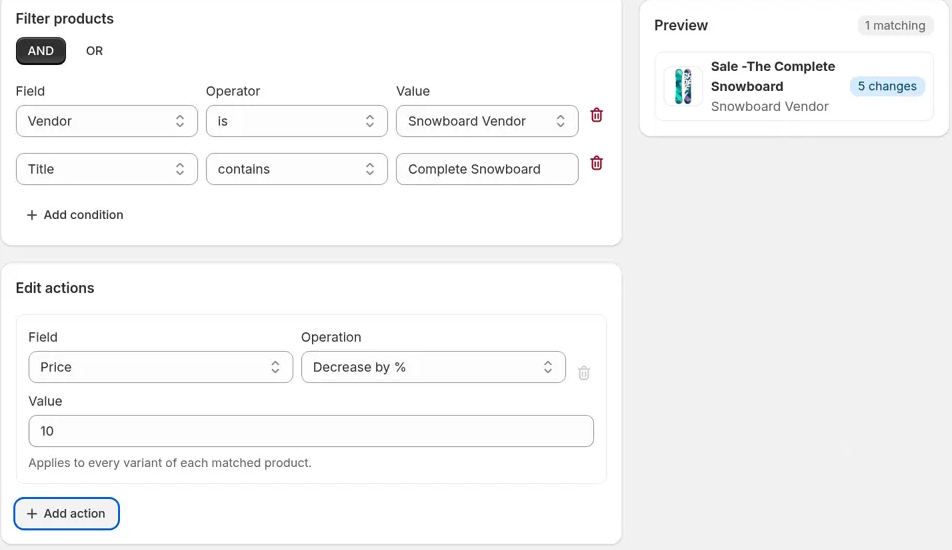
The Preview list shows one row per product. The per-variant lines appear when you click the product.
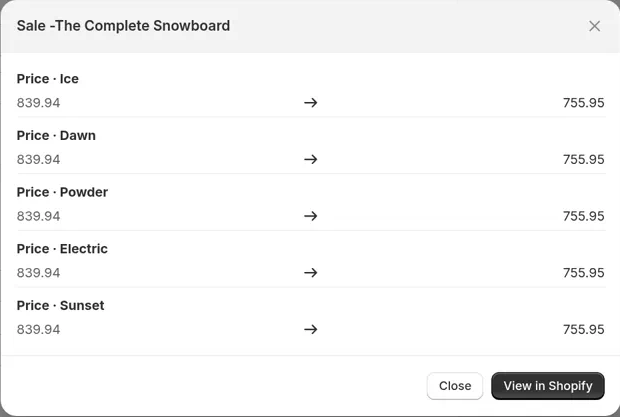
Each variant is changed from its own value. For example, Increase by % 10 on a product with a $20.00 variant and a $30.00 variant gives $22.00 and $33.00. Round price rounds each variant's own price.
Change prices for specific variants
- Open Bulk Edit. Under What to edit, choose Variants.
- In Filter variants, add conditions for the variants you want, for example SKU starts with TSHIRT-, Barcode is equal to a single barcode, or Price is greater than 100.
- In Edit actions, set Field to Price or Compare at price.
- Pick an Operation and enter a Value.
- Type a Task name and check the Preview count.
- Click Run now, or click Schedule to run it later.
In Variants mode, a Price filter checks each variant's own price, so only the variants in your range change. Keep the toggle on AND when you use a Price filter: Edify refuses Price combined with OR in Variants mode. See Choose which products to edit with filters.
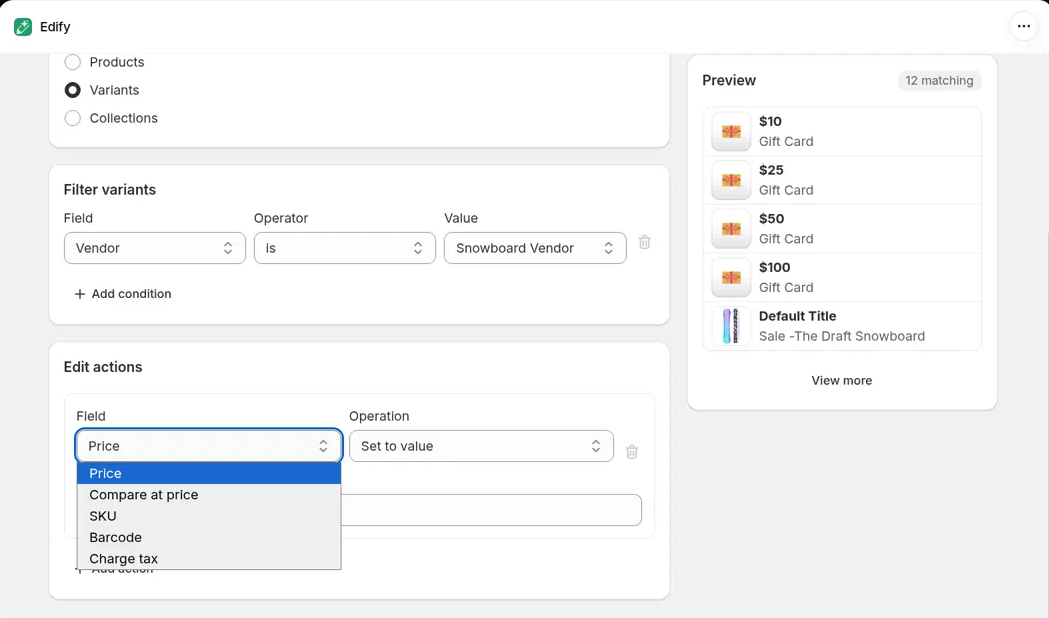
Price operations
| Operation | What it does | Example with a $20.00 price |
|---|---|---|
| Set to value | Sets every matching price to the amount you enter | 15 gives $15.00 |
| Increase by amount | Adds the amount | 5 gives $25.00 |
| Decrease by amount | Subtracts the amount | 5 gives $15.00 |
| Increase by % | Raises the price by a percentage | 10 gives $22.00 |
| Decrease by % | Lowers the price by a percentage | 25 gives $15.00 |
| Round price | Rounds to the ending you pick in Round to | $X.99 gives $20.99 |
Prices never go below $0.00, and results are rounded to two decimals. The same operations work for Compare at price. Variants with no compare-at price are left empty by every operation except Set to value.
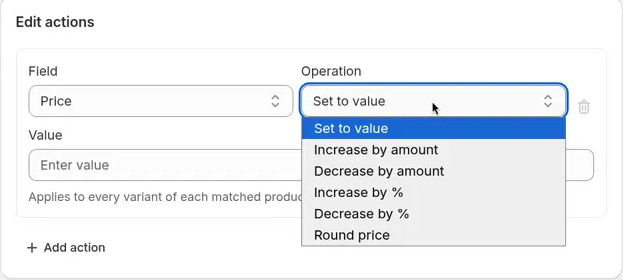
How rounding works
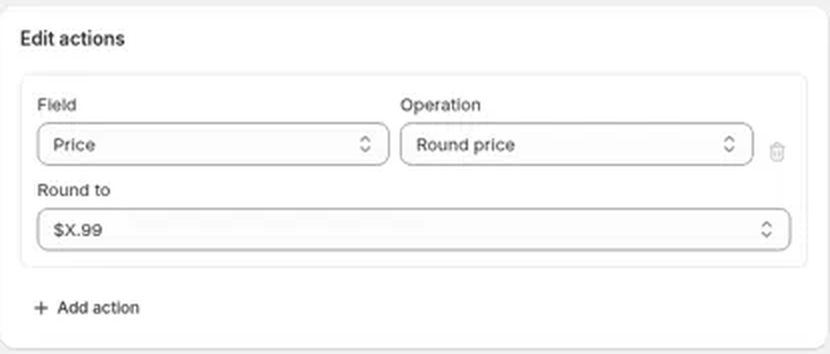
Pick Round price, then choose an ending in Round to:
- $X.99 keeps the whole-dollar part and sets the cents to .99. $24.10 becomes $24.99.
- $X.95 does the same with .95. $24.10 becomes $24.95.
- $X.00 rounds to the nearest whole amount. $24.49 becomes $24.00 and $24.50 becomes $25.00.
$X.99 and $X.95 can raise a price slightly ($20.00 becomes $20.99).
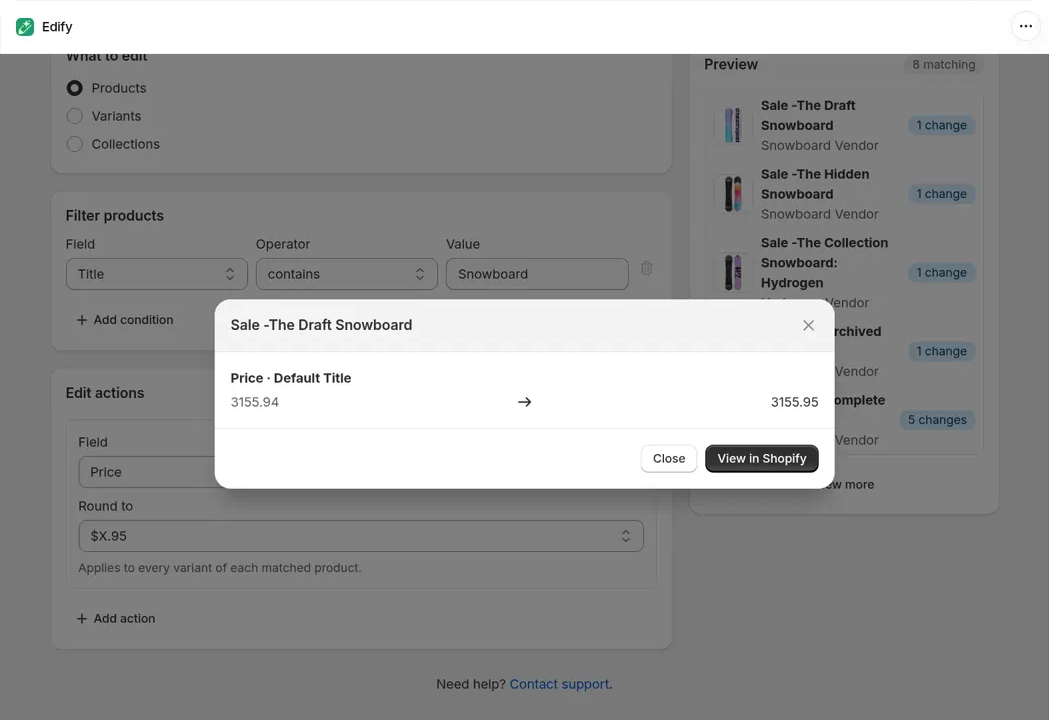
Round price at $X.95 in the Preview: 3155.94 becomes 3155.95.
Discount and round in one task
- In Edit actions, set Field to Price, Operation to Decrease by %, and Value to 10.
- Click Add action. Set Field to Price, Operation to Round price, and Round to to $X.99.
- Check the Preview, then click Run now or Schedule.
Actions run from top to bottom, and each one starts from the result of the one above it. A $25.00 price drops to $22.50, then rounds to $22.99. The Preview and History show one line per variant, from the original price to the final one (25.00 → 22.99), and Revert puts back $25.00.
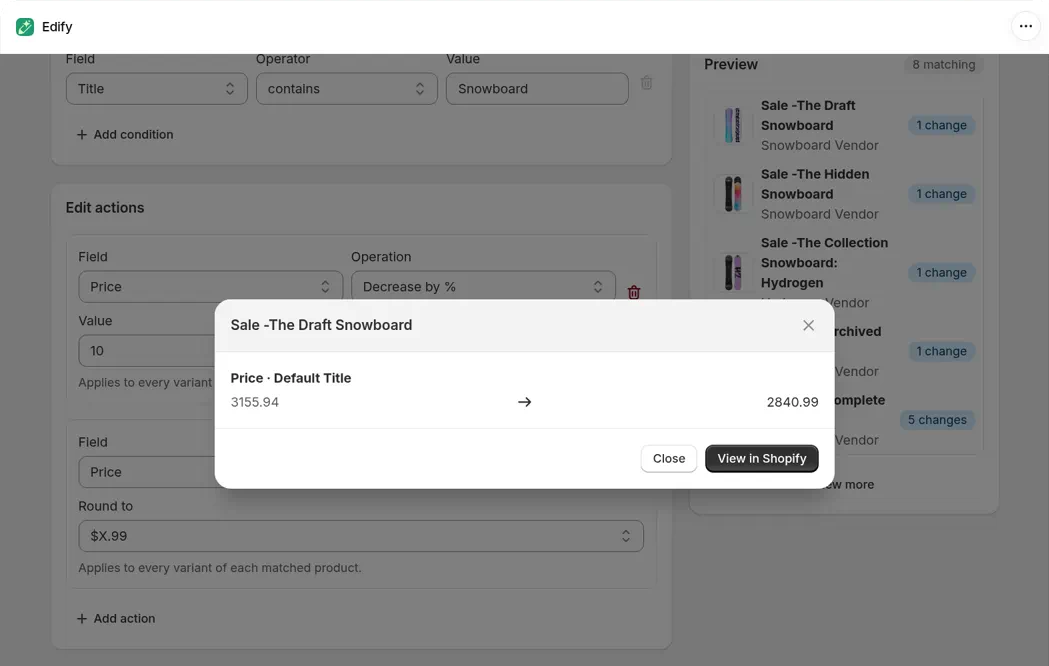
10% off, then round to .99, takes 3155.94 to 2840.99, shown as one line.
Order matters. Rounding first and then discounting gives $23.39 instead. See Run several edits at once.
Run a sale that ends on its own
- Build your price edit, for example Price, Decrease by %, value 20.
- Click Schedule and set Run at to when the sale starts.
- Check Automatically revert changes after a specified time.
- Set Revert at to when the sale ends, then click Schedule.
At the revert time, prices go back to what they were before the sale. See Schedule an edit and revert it automatically.
Good to know
- In Products mode, filters pick products, and the edit changes every variant of each matched product. A Price filter doesn't limit which variants change, so variants priced outside your range are edited too. To change only the variants in a price range, use Variants with the same Price filter.
- Increase by amount, Decrease by amount, Increase by %, Decrease by %, and Round price skip any variant that has no compare-at price, so it stays empty. A compare-at price of 0 is still changed. To give variants a compare-at price, use Set to value, which fills empty ones too. Skipped variants aren't listed in the Preview window or in History.
- For a product with more than 10 variants, the Preview shows the first 10. The task still edits every variant.
- Test on one product first: filter by Title is equal to that product's title (in Products) or SKU is equal to one SKU (in Variants). Then open the task in History and check the old → new prices in Changes.
- Revert puts back each variant's old price and compare-at price. See View history and undo an edit.
- Edify can't copy the current price into Compare at price, and it can't edit cost per item or tax codes. See What Edify can and can't edit. To turn Charge tax on or off, see Fields you can edit in bulk.