Fields you can edit in bulk
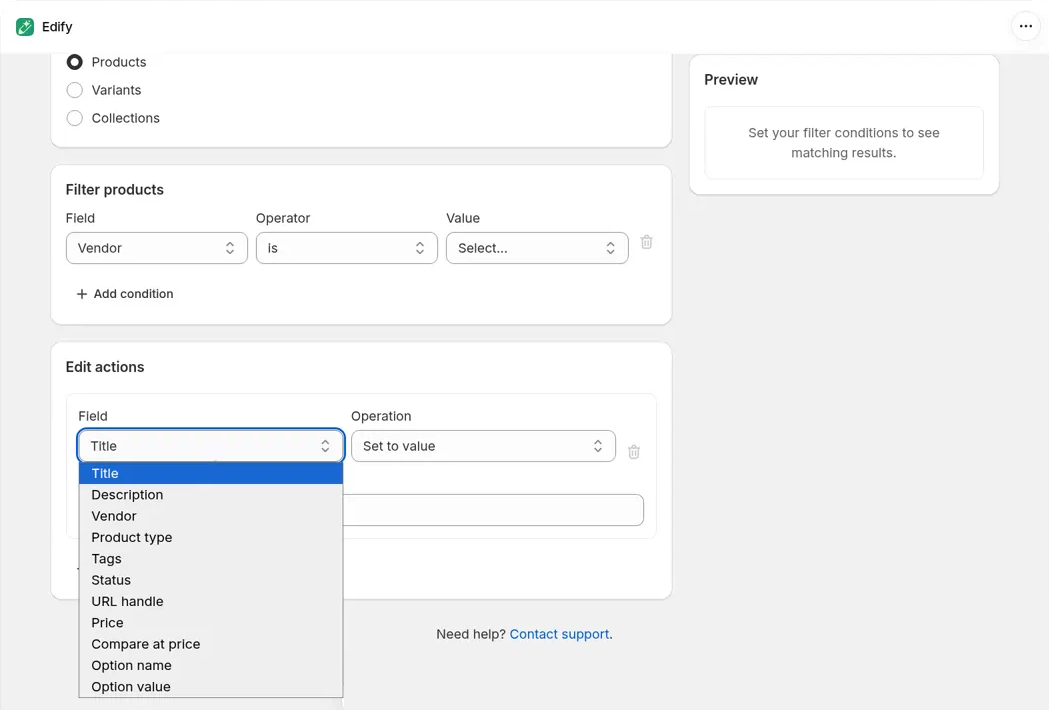
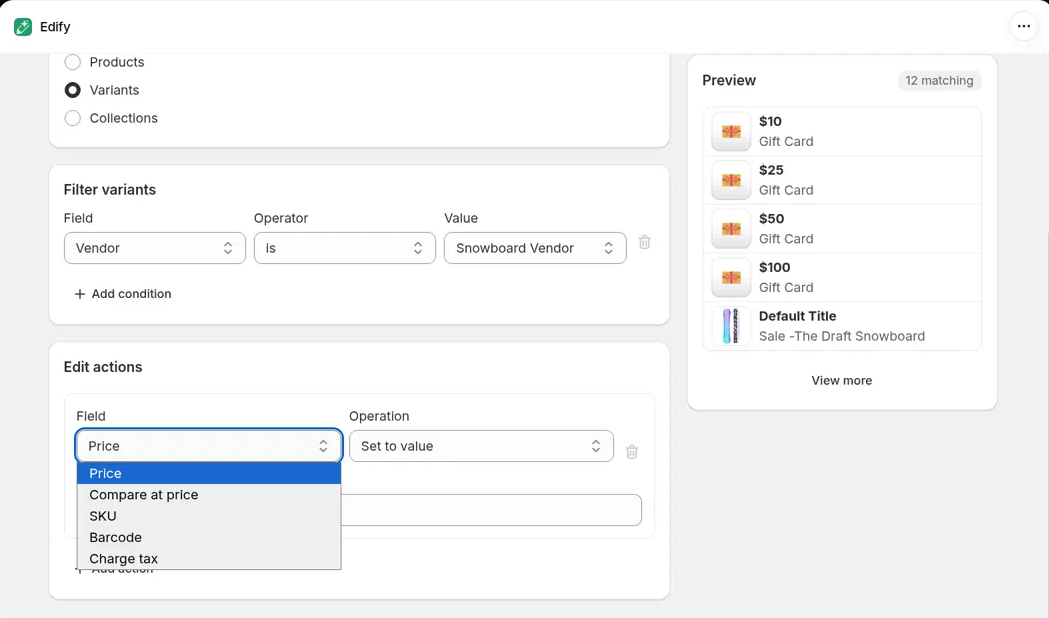
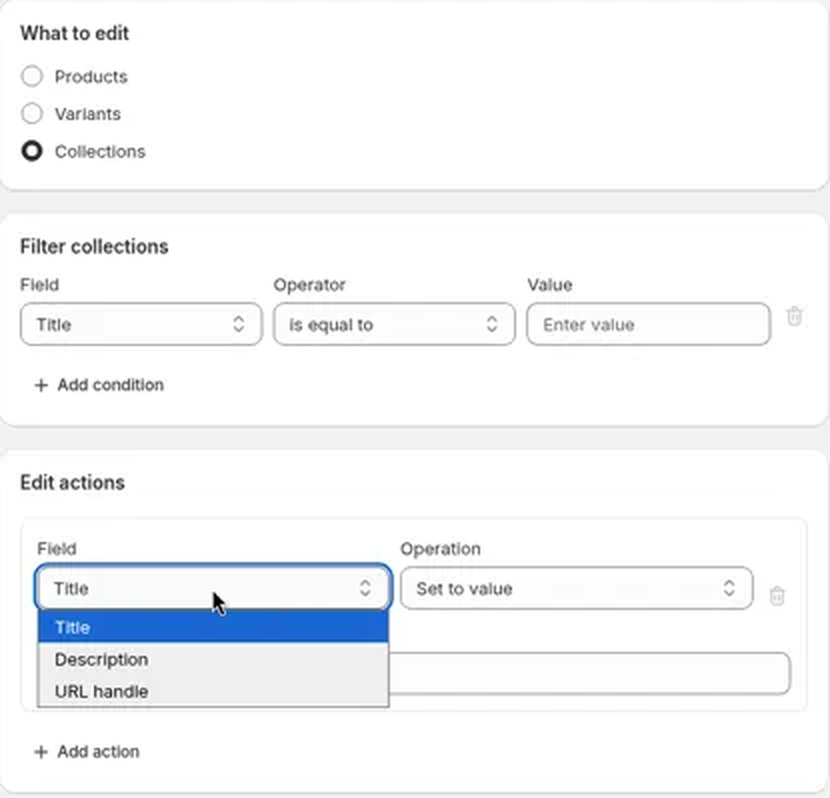
Edify can edit 17 fields across products, variants, and collections. The Field list in Edit actions changes depending on what you pick under What to edit.
Fields by type
| What to edit | Fields you can edit |
|---|---|
| Products | Title, Description, Vendor, Product type, Tags, Status, URL handle, Price, Compare at price, Option name, Option value |
| Variants | Price, Compare at price, SKU, Barcode, Charge tax |
| Collections | Title, Description, URL handle |
Looking for prices? Price and Compare at price are under both Products and Variants:
- With Products, a price edit applies to every variant of each matched product, and each variant is changed from its own price. Use it to change whole products, for example everything in a collection or from a vendor.
- With Variants, you target specific variants, for example by SKU, Barcode, or Price. Use it when only some variants of a product should change.
See Bulk edit prices and compare-at prices.
Operations for each field
| Field | Operations |
|---|---|
| Title, Description, Vendor, Product type, SKU, Barcode (and collection Title and Description) | Set to value, Find and replace, Add text to start, Add text to end, Remove text, Change capitalization |
| URL handle (products and collections) | Set to value, Find and replace, Add text to start, Add text to end, Remove text |
| Price, Compare at price (products and variants) | Set to value, Increase by amount, Decrease by amount, Increase by %, Decrease by %, Round price |
| Tags | Set tags, Add tags, Remove tags |
| Status | Set status (Active, Draft, Archived) |
| Option name, Option value (products) | Rename |
| Charge tax (variants) | Set to value (Yes or No) |
What the text operations do
- Set to value replaces the whole field with your text.
- Find and replace swaps the text in Find for the text in Replace with. It's case-sensitive, so "Snow" doesn't match "snow".
- Add text to start puts your text before what's already there.
- Add text to end puts your text after what's already there.
- Remove text deletes your text from the field.
- Change capitalization switches the field to Title Case, UPPERCASE, or lowercase.
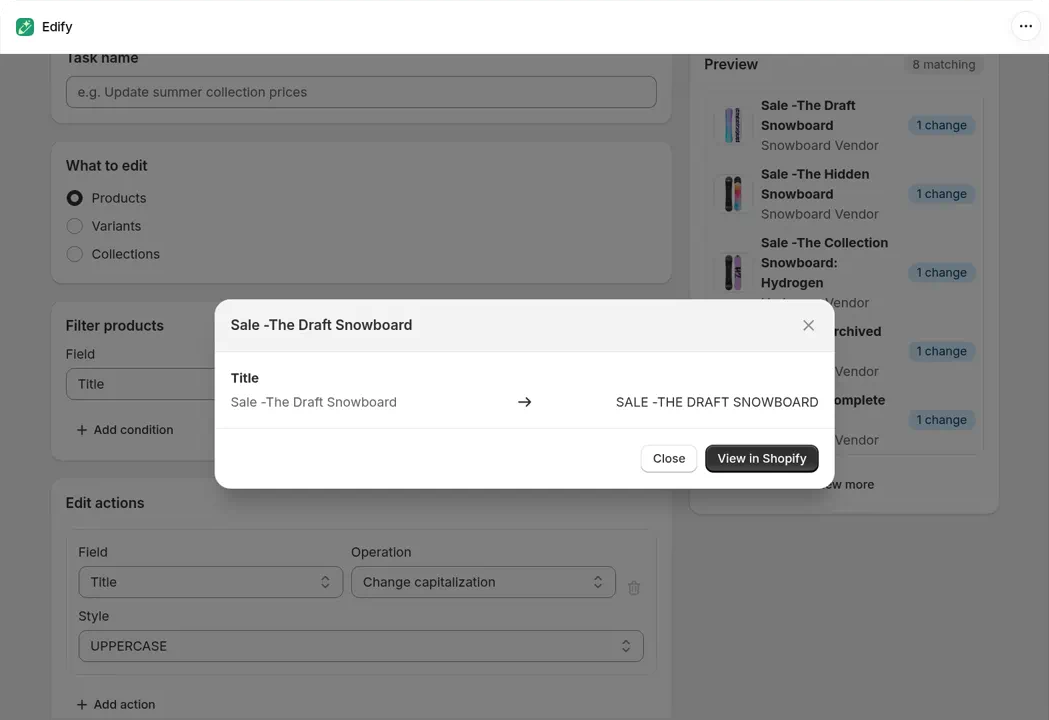
Click an item in the Preview to see the result before you run, here UPPERCASE on a title.
Rename options
Option name and Option value rename a product's options and their values, for example the option Colour to Color or the value Grey to Gray. Fill in Current name and New name (or Current value and New value). The current name must match the whole name, ignoring case. For an option value, Only in option can limit the rename to one option. See Rename variant options in bulk.
Turn Charge tax on or off
Charge tax is the Shopify setting that decides whether tax is charged when a variant is sold. Edify can change it for many variants at once in Variants mode.
- In Bulk Edit, under What to edit, choose Variants.
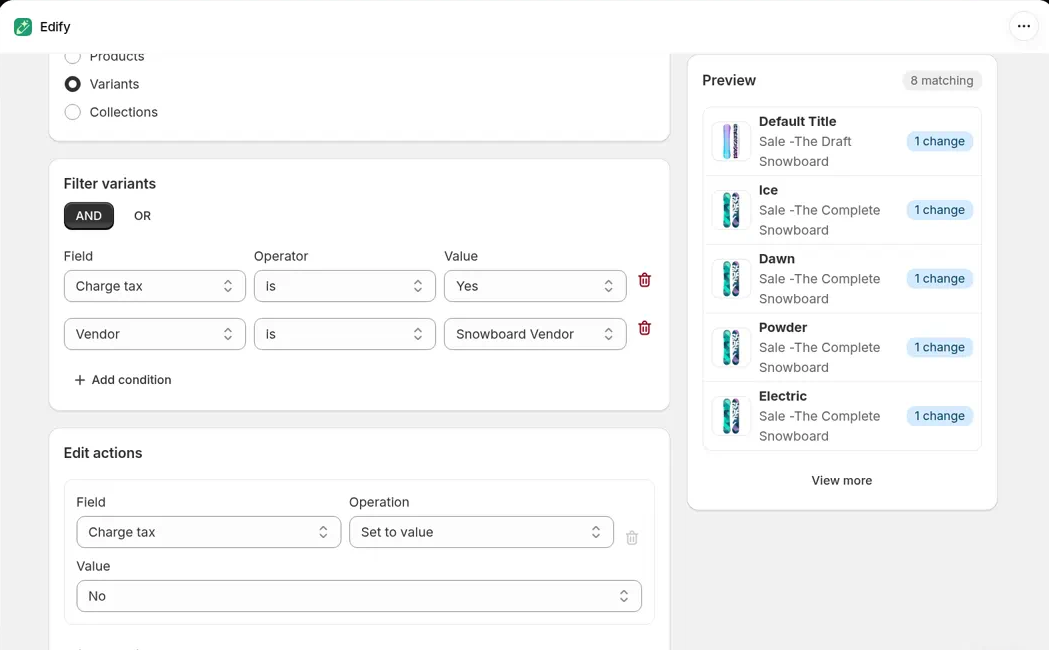
- In Filter variants, add your conditions. To pick only variants that charge tax now, set Field to Charge tax, the operator to is, and the value to Yes. Add more conditions with AND to narrow it down, for example Vendor is Snowboard Vendor.
- In Edit actions, set Field to Charge tax. The Operation is Set to value.
- In Value, choose No to stop charging tax, or Yes to charge it. A new action starts on Yes.
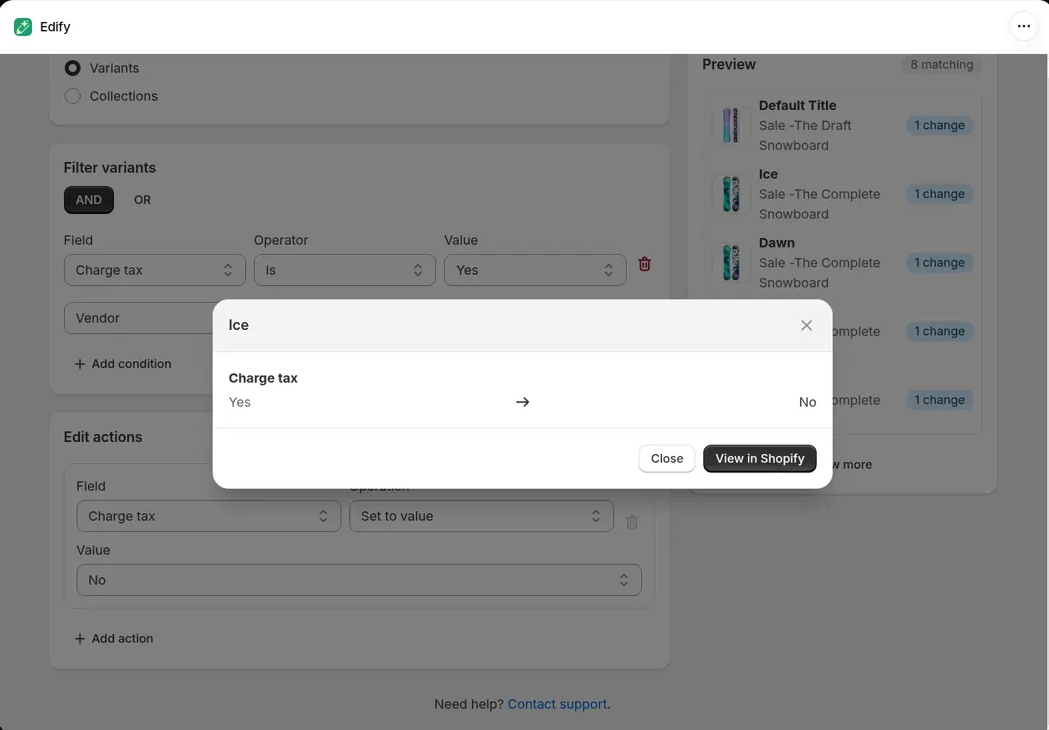
- Type a Task name and check the Preview. It lists each variant by name, with its product below and a 1 change badge. Click a variant to open a window titled with the variant's name, such as Ice, showing Charge tax Yes → No.
- Click Run now or Schedule.
- Variants that already have the value you pick aren't changed. In History they say Already up to date, nothing changed.
- History shows each variant's old value → new value, such as Charge tax Yes → No. Revert puts back each variant's old setting. See View history and undo an edit.
- Charge tax isn't in the Field list or the filters when Products or Collections is selected.
- Edify doesn't change tax codes or other tax settings.
Guides for common fields
- Bulk edit prices and compare-at prices
- Edit product descriptions in bulk
- Add or remove tags in bulk
- Change product status in bulk
- Rename variant options in bulk
Fields Edify can't edit
Inventory quantities, tax settings other than Charge tax, weight, SEO fields, metafields, and images aren't in the list. You can rename options and option values, but you can't add or remove options or create variants. See What Edify can and can't edit.