Choose which products to edit with filters
Filters decide which items an edit changes. You add one or more conditions, choose whether items must match all of them or any of them, and Edify only edits the items that match.
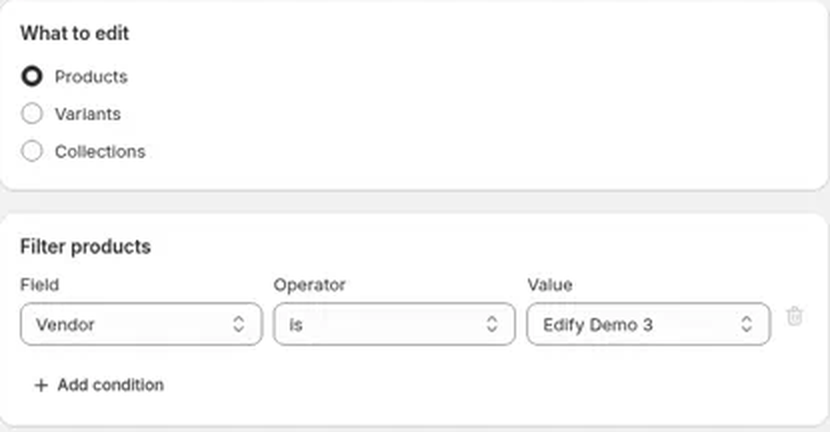
Add a condition
- In Bulk Edit, choose Products, Variants, or Collections under What to edit. The filters you can use depend on this choice.
- In the filter card, pick a Field, an Operator, and a Value.
- Check the Preview panel. It shows how many items match, for example 13 matching.
- To add another condition, click Add condition. To remove one, click the trash icon next to it.
Combine conditions with AND or OR
Once you have two or more conditions, an AND / OR toggle appears at the top of the filter card. AND is selected by default.
- AND matches items that meet all of your conditions. Use it to narrow things down. For example, Vendor is Acme AND Tag is Winter finds Acme products that are also tagged Winter.
- OR matches items that meet any of your conditions. Use it to cover several groups in one edit. For example, Vendor is Acme OR Vendor is Hydrogen finds products from either vendor.
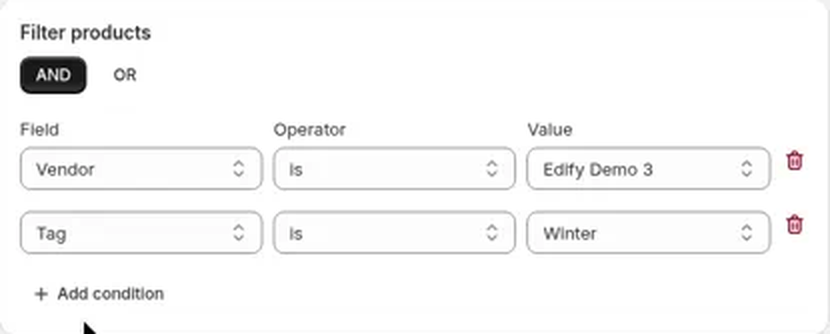
To switch, click AND or OR. Your choice applies to every condition in the filter, so you can't mix AND and OR in one task.
OR works with almost every filter, including Collection is not and is between. For example, Collection is not Sale OR Vendor is Acme matches every product outside the Sale collection, plus the Acme products inside it. There are two exceptions: Option name and Option value in Products mode, and Price in Variants mode. See Option name and Option value filters and Price filters and OR in Variants mode below.
The Preview count, the View more list, and the task itself all follow your AND or OR choice, so the items you preview are the items Edify edits. After the task runs, its details in History show AND or OR between the conditions.
Need a mix, such as Acme products tagged either Winter or Summer? Run one edit per group, for example Vendor is Acme AND Tag is Winter, then Vendor is Acme AND Tag is Summer.
Filters for products
| Field | Operators |
|---|---|
| Collection | is, is not |
| Vendor | is, is not |
| Tag | is, is not |
| Product type | is, is not |
| Status | is, is not (Active, Draft, or Archived) |
| Title | is equal to, is not equal to, contains, starts with |
| Price | is equal to, is greater than, is less than, is between |
| Inventory | is equal to, is greater than, is less than, is between |
| Option name | is equal to, is not equal to, contains, starts with |
| Option value | is equal to, is not equal to, contains, starts with |
In Products mode, filters pick products. Inventory uses the product's total stock across its variants. If your edit changes Price or Compare at price, it applies to every variant of each matched product, even variants whose own price is outside a Price range. To change only variants in a price range, use Variants instead.
Option name and Option value filters
Option name checks the names of a product's options, such as Color or Size. Option value checks the values of all its options, such as Grey or Small.
- Case doesn't matter. Option name is equal to color matches a Color option.
- is equal to matches the whole name, so Col doesn't match Color. Use contains or starts with for part of a name.
- is not equal to matches products where no option (or no value) has that name.
- On a large store, the Preview count can take longer with these filters, because Edify checks the options of each product.
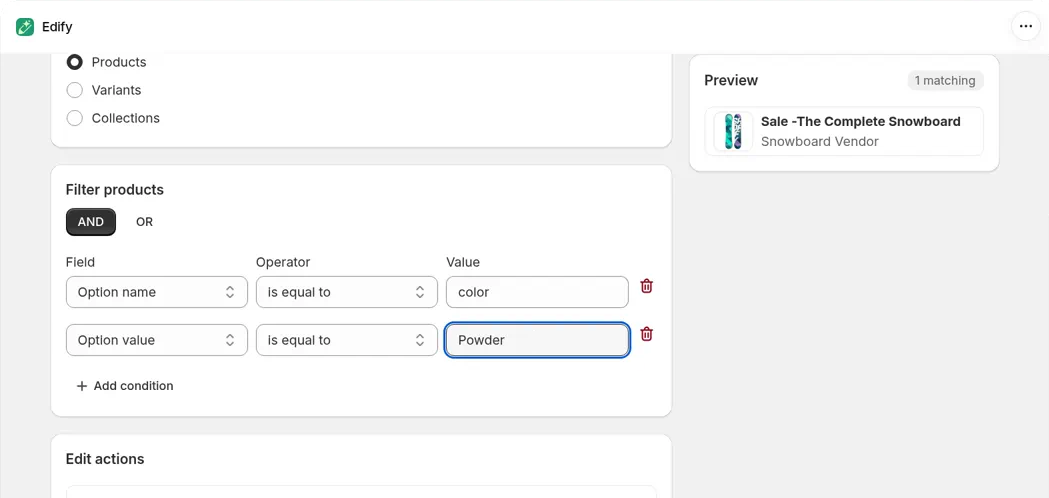
Two option filters joined with AND. Only products that have a Color option and a Powder value match.
You can't combine an option filter with OR. If you try, a red banner at the top of Bulk Edit says:
Option filters can't be combined with OR. Switch to AND.
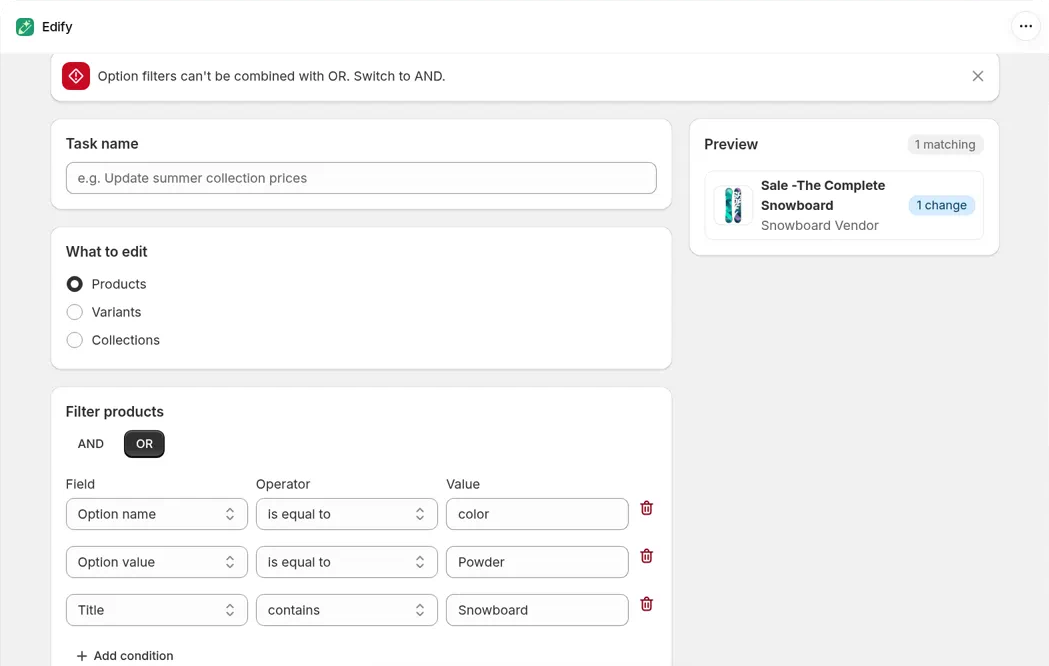
The banner appears when an option filter is combined with OR. Click AND to fix it.
The Preview doesn't update, and Edify won't run or schedule the task. Click AND in the filter card, or remove the option condition, then close the banner and check the Preview count.
To rename options and values, see Rename variant options in bulk.
Filters for variants
| Field | Operators |
|---|---|
| Collection, Vendor, Tag, Product type | is, is not |
| SKU, Barcode | is equal to, is not equal to, contains, starts with |
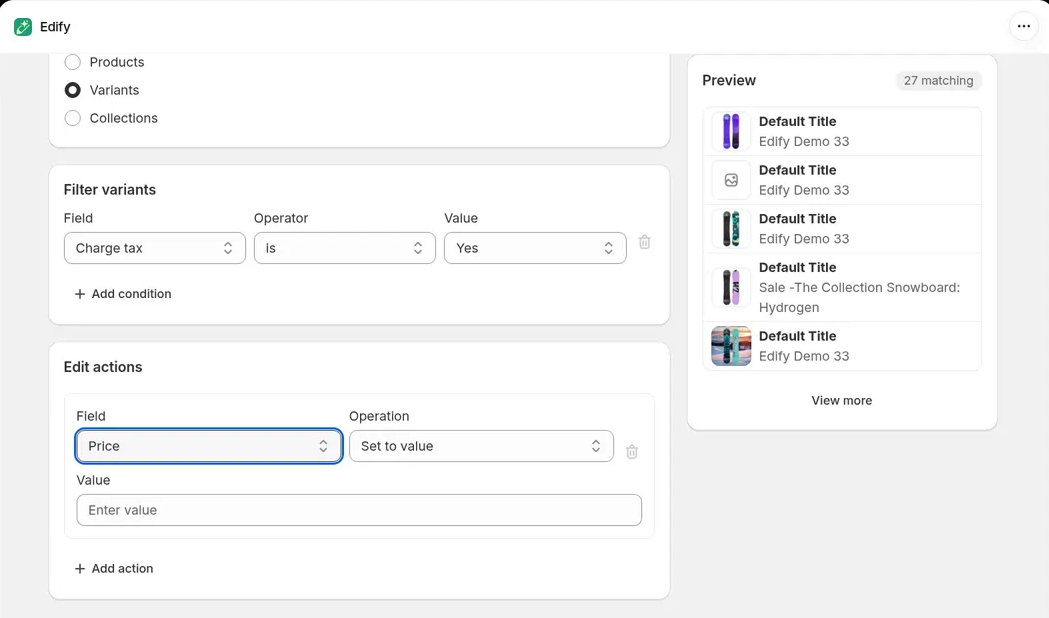
| Charge tax | is, is not (Yes or No) |
| Price, Inventory | is equal to, is greater than, is less than, is between |
In Variants mode, filters pick variants, and each one is checked on the variant itself:
- Collection is matches the variants of products in that collection. Collection is not leaves them out. Both work with AND and OR.
- Price uses each variant's own price. For example, Price is greater than 800 matches only variants priced over 800, even if other variants of the same product cost less.
- Inventory uses each variant's own stock, not the product's total.
- Charge tax uses each variant's Shopify Charge tax setting. Charge tax is Yes matches variants that charge tax. Charge tax is No, or is not Yes, matches variants that don't. It works with AND and OR.
The Preview count, the View more list, and the task all use the same check, so the count is the number of variants the edit changes.
Option name and Option value aren't available in Variants mode, and Charge tax isn't available in Products mode.
Price filters and OR in Variants mode
In Variants mode, you can't combine a Price filter with OR. If you try, a red banner at the top of Bulk Edit says:
Price filters can't be combined with OR in Variants mode. Switch to AND, or use Products mode.
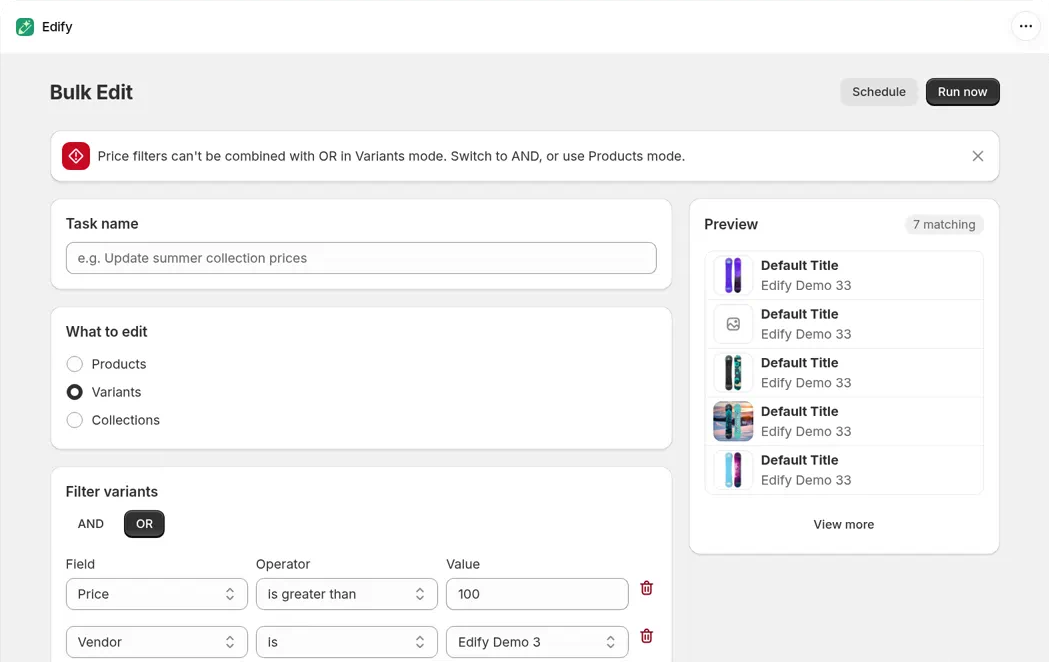
The banner appears a moment after you pick OR. The Preview still shows the last result, here 7 matching, until you fix the filter.
The Preview doesn't update, and Edify won't run or schedule the task. To fix it, do one of these:
- Click AND in the filter card, so variants must match the price and your other conditions.
- Remove the Price condition.
- Choose Products under What to edit. A Price filter there picks products, and a price edit changes every variant of each matched product.
The banner stays until you close it, so after you fix the filter, close it and check that the Preview count has updated.
A Variants task that was already saved or scheduled with Price and OR fails when it runs, with this message and 0 edits. See Schedule an edit and revert it automatically.
Filters for collections
| Field | Operators |
|---|---|
| Title | is equal to, is not equal to, contains, starts with |
When a filter can't be applied
If Shopify can't apply one of your filters, Edify stops instead of quietly matching your whole store. This works the same in every mode.
- In Bulk Edit, a red banner at the top of the page explains the problem, for example Shopify can't filter by ... here, so this filter would match everything. Remove it and try again. The Preview doesn't update.
- Remove or change the condition the message names. It uses Shopify's name for the field, which can differ from the label in Edify. Then close the banner and check the Preview count.
- If a task that was already saved or scheduled hits this when it runs, it fails and makes 0 edits. Its status in History is Failed, and its details show the same message. See View history and undo an edit.
Tips
- is between asks for a Min and a Max.
- Switching from AND to OR usually raises the match count. Check the Preview before you run.
- In Variants mode, keep AND whenever one of your conditions is Price. In Products mode, keep AND whenever one is Option name or Option value.
- You need at least one condition. To edit all of your active products, use Status is Active.
- To test an edit on one product first, use a single Title is equal to condition with that product's exact title.
- Dropdown values (collections, vendors, product types, tags) come from your store. If you have more than 250 of one kind, the list shows the first 250. Use a text filter such as Title contains to reach the rest.
- You can filter by Inventory, but Edify can't change stock levels. See What Edify can and can't edit.