Schedule an edit and revert it automatically
Schedule an edit to run at a set date and time, and have Edify undo it automatically later. It's ideal for sales: lower prices when the sale starts and put them back when it ends.
Before you start: check your timezone
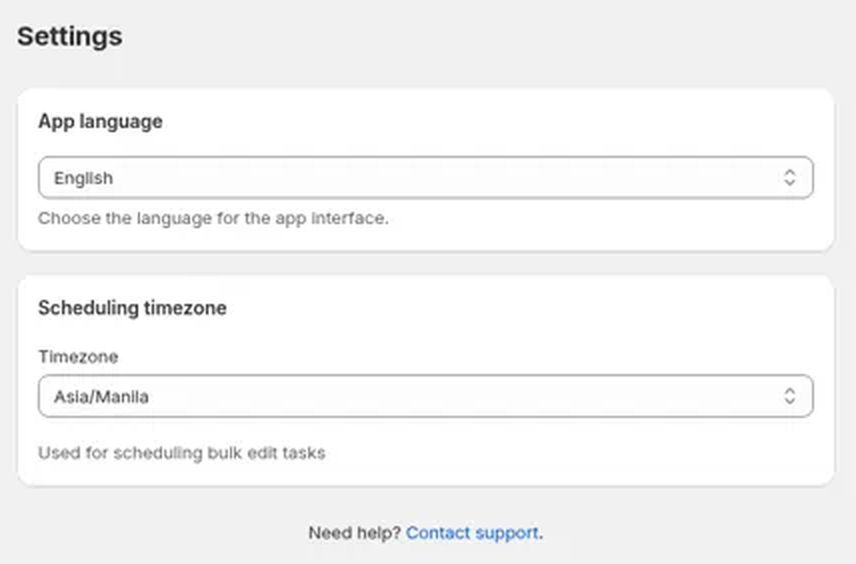
Scheduled times use the timezone in Edify's settings.
- In Edify, open Settings.
- Under Scheduling timezone, check the Timezone and change it if needed.
Schedule an edit
- In Bulk Edit, set up What to edit, your filters, and your actions.
- Type a Task name and wait for the Preview to finish. Schedule stays disabled until the preview is ready.
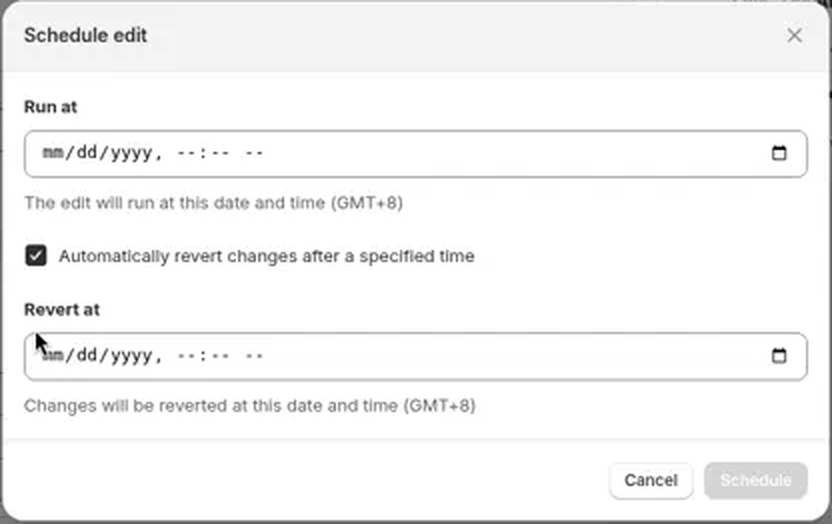
- Click Schedule (next to Run now). The Schedule edit dialog opens.
- Set Run at to the date and time the edit should run. The note below it shows your timezone, for example GMT+8.
- To undo the edit automatically, check Automatically revert changes after a specified time.
- Set Revert at to when the changes should be undone. It must be after Run at.
- Click Schedule.
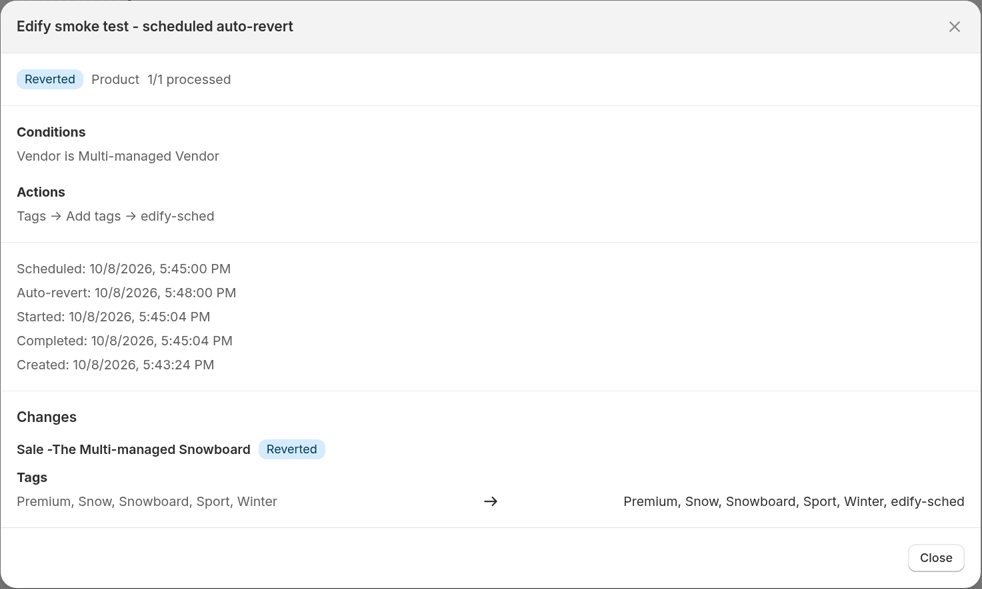
Your task appears in History with the status Scheduled. Open the task name to see Scheduled and, when you turned auto-revert on, Auto-revert with those times in your store timezone. Both lines stay in the details after the task runs and after it's reverted.
How auto-revert works
- At the Revert at time, Edify puts back the values each item had before the edit ran.
- Auto-revert only runs if the edit completed. A task where some products saved only part of their edits still counts as completed, so auto-revert undoes what was saved.
- Auto-revert is only available through Schedule. For an edit you ran with Run now, revert it by hand from History.
Change or cancel a scheduled edit
- Go to History.
- Find the task and click Cancel.
- Create a new scheduled edit with the right settings.
Good to know
- Each schedule runs once. Edify doesn't repeat edits on a schedule.
- A scheduled Variants task that uses a Price filter with OR fails when it runs, without editing anything. Its details in History say Price filters can't be combined with OR in Variants mode. Switch to AND, or use Products mode. To fix it, cancel the task while it's still Scheduled, then schedule it again with AND, or with Products selected. If it already failed, just schedule a new one that way. Edify won't let you schedule a new one with Price and OR in Variants mode. See Choose which products to edit with filters.
- The same goes for any filter Shopify can't apply: the task fails with 0 edits instead of matching your whole store.
- See View history and undo an edit to revert by hand at any time.
- For a full sale example, see Bulk edit prices and compare-at prices.