Preview doesn't show a change for an item
The Preview panel lists every matching item. A badge such as 1 change marks the items your edit will change, and clicking an item shows each field's old value → new value. Every action you've filled in is included: Set status, Change capitalization, Round price, Find and replace, and the rest.
If an item has no badge, or its window says No changes, one of these is usually why.
Why an item shows no change
- It already has the new value. For example, Set status to Active on a product that's already active, Change capitalization to Title Case on a title that's already in Title Case, or Round price to $X.99 on a price that already ends in .99.
- Find and replace didn't find the text. It's case-sensitive, so "Snow" doesn't match "snow". In descriptions, a phrase that's partly bold or split across lines may not match either.
- The action isn't filled in yet. The preview leaves out an action until it has a value, for example Find and replace with nothing in Find. Fill it in, and the preview updates a moment later.
- An option rename didn't match. Current name and Current value must match the whole name, ignoring case, so Gre doesn't match Grey. A value rename with Only in option skips products that have no option by that name. See Rename variant options in bulk.
- Your actions cancel out. Actions on the same field run in order, so Increase by amount 5 followed by Decrease by amount 5 on Price ends at the original price and changes nothing.
- A variant was skipped. Math actions such as Round price or Increase by amount on Compare at price skip variants that have no compare-at price.
An item that shows no change in the preview isn't changed when you run the task either. In History, it says Already up to date, nothing changed.
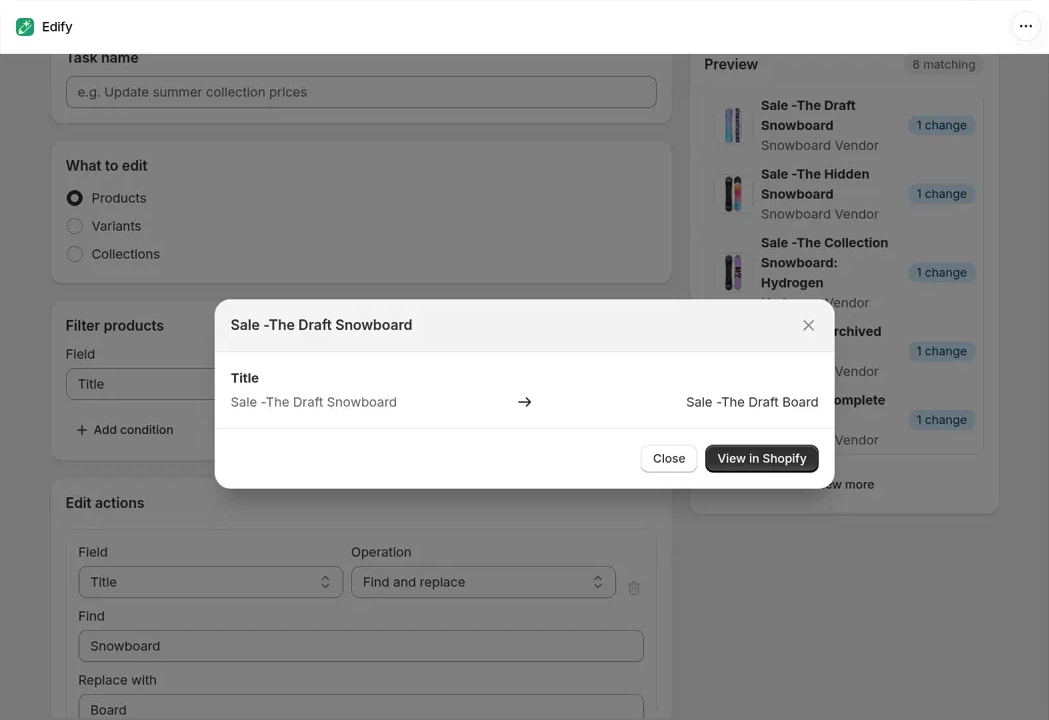
Find and replace in the Preview: each matching title shows a badge, and the window shows the old and new title.
Check the result safely
- Narrow your filters to one product, for example Title is equal to that product's title.
- Type a Task name and click Run now.
- In History, click the task name and check the Changes section. It shows the old value → new value for the product. See View history and undo an edit.
- If it looks right, run the edit again with your full filters. If not, open History and click Revert on the test task.
Related
Still stuck? Message us from the chat in the app and we'll help.