Add or remove tags in bulk
Edify can add tags to many products at once, remove tags, or replace all tags with a new set.
Edit tags
- Open Bulk Edit. Or click Manage tags on the Dashboard.
- Under What to edit, choose Products.
- Add filters for the products you want. See Choose which products to edit with filters.
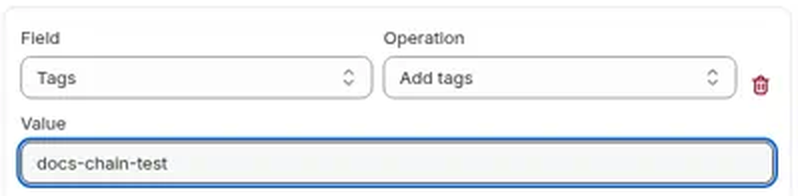
- In Edit actions, set Field to Tags.
- Pick an Operation: Add tags, Remove tags, or Set tags.
- Type the tags in Value. Separate several tags with commas, for example
summer, sale. - Type a Task name, check the Preview, then click Run now or Schedule.
Which operation to use
| Operation | What it does |
|---|---|
| Add tags | Adds your tags and keeps the existing ones |
| Remove tags | Removes your tags and keeps the rest. Capitals don't matter, so Sale also removes sale |
| Set tags | Replaces all existing tags with only the tags you enter |
Be careful with Set tags. It removes every tag that isn't in your list.
Good to know
- Tags are edited on products. With Variants selected, Tag is a filter only.
- A tag added with Edify can be used as a filter in your next edit, which is a handy way to group products.
- To undo, revert the task from History. See View history and undo an edit.