Preview changes before you apply them
The Preview panel on the Bulk Edit page shows which items your edit will touch, and what it will change on each one, before anything changes in your store.
Use the preview
- In Bulk Edit, set up What to edit, your filters, and your actions.
- Look at the Preview panel on the right. It updates on its own a moment after you change a filter or an action. While it loads, Run now and Schedule stay disabled so you don't start a task before the preview is ready.
- Check the count at the top, for example 5 matching. If nothing matches, it shows 0 matching and No matching results found. If 10,000 or more items match, the count can start with ~, for example ~10000 matching.
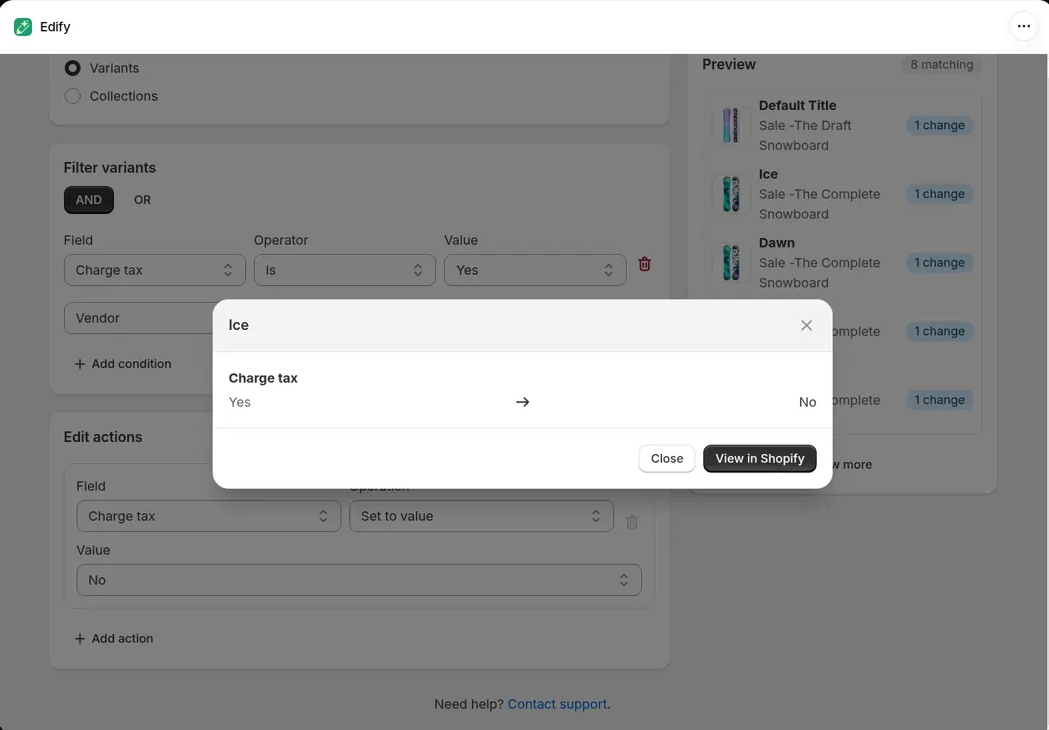
- Scroll the list. Each item shows its image, title, and vendor. In Variants mode, each variant shows its name, such as Ice, with its product below.
- Click View more to see the rest of the matching items.
- Look for a badge such as 1 change. It marks items your edit will change and counts the changes. For example, Find and replace on Title plus Add tags shows 2 changes on an item where both change something.
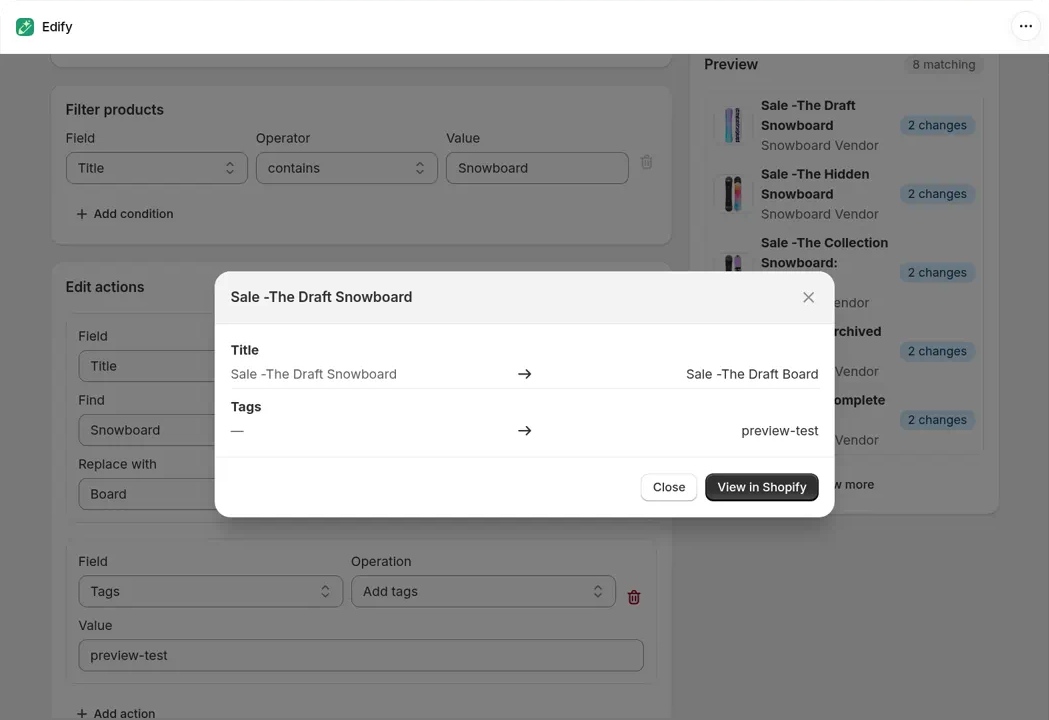
Two actions on two fields: each item shows 2 changes, and its window lists one line per field.
If several actions change the same field, they run in order, and the item shows one line for that field, from the current value to the final value. The badge counts that field once. For example, Price Decrease by % 10 then Price Round price $X.99 shows one line, 25.00 → 22.99.
See the old and new values for an item
- In the Preview list, click an item.
- A window opens, titled with the item's name. In Variants mode, that's the variant's name, such as Ice. Each field your edit changes shows its old value → new value, for example Tags Accessory, Sport, Winter → Accessory, Sport, Winter, summer-sale.
- Click View in Shopify to open the item in your Shopify admin, or click Close to go back.
Option renames show which option a value belongs to, for example Option value · Color Grey → Gray, or Option name Colour → Color. Fields with a fixed list of values show the value's name, for example Charge tax Yes → No or Status Draft → Active. See Rename variant options in bulk.
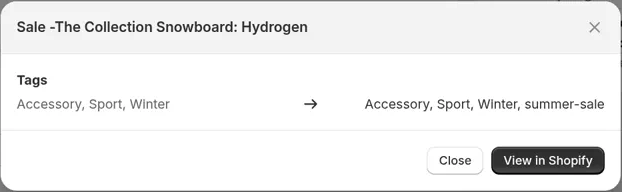
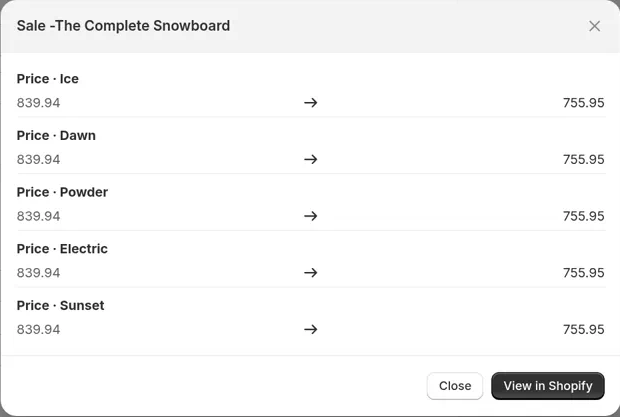
When you edit Price or Compare at price with Products selected, the list still shows one row per product, with a badge that counts one change per variant (for example 5 changes). Click the product to see one line per variant, labeled like Price · Ice. For a product with more than 10 variants, the preview shows the first 10. The task still edits every variant.
Variants your edit skips aren't listed in the window, and the badge doesn't count them. For example, Round price or Increase by amount on Compare at price skips variants that have no compare-at price. If nothing on an item will change, it has no badge, and its window says No changes.
What the preview shows
- Which items match your filters, and how many.
- Which items your actions will change.
- For any item you click, the old and new value of each field it changes.
The count and the View more list follow your AND or OR choice, the same way the task does when it runs. See Choose which products to edit with filters.
Tip: before a very large edit, you can also run it on one product first (for example, filter by Title is equal to that product's title) and check the result in the task's Changes section in History. See View history and undo an edit.
Good to know
- Every action you've filled in is in the preview, including Set status, Change capitalization, Round price, and Find and replace. An action that still needs a value, such as Find and replace with nothing in Find, is left out until you fill it in. If an item shows no change, see Preview doesn't show a change for an item.
- In every mode, the count matches the items listed and the items the task edits. In Variants mode, Collection, Price, Inventory, and Charge tax filters are checked on each variant.
- If a filter can't be used, a red banner at the top of Bulk Edit explains why, and the Preview doesn't update. For example, Price can't be combined with OR in Variants mode. Fix the filter, close the banner, and check that the count updates. See Choose which products to edit with filters.
- Run now and Schedule stay disabled while the preview is loading. If the preview fails and there's still nothing to show, Edify asks Continue without preview? before it runs.
- If more than 10,000 items match, a banner warns you. Edify edits up to 10,000 items per task. See Only 10,000 items were edited.