Charge add-on prices for options
Add-on prices let you charge extra when a customer selects a specific option value, such as +$5 for gift wrapping or +$10 for express processing. This feature is available on the Pro plan.
On the Free plan, the Add-on price field is locked. You see a lock icon next to its label and a banner above the option values: "Upgrade to Pro to set add-on prices and link products". Click Upgrade to Pro in that banner to open the Pricing page. If you have unsaved changes, you are asked to discard them first, so save the option set before you upgrade. See Plans and pricing.
Set an add-on price
- Open your option set and select a choice option (Checkbox, Dropdown, Radio button, Button, or a swatch). For size-based pricing, use a Dimension option instead (see below).
- Select the option value you want to charge for.
- Enter the Add-on price. The product price will be increased by this amount when the value is selected.
- Save the option set.
On the product page, the displayed price updates as the customer selects paid values, so there are no surprises at checkout.
Dimension rates
A Dimension option uses the same add-on price field as a rate per size, not a flat surcharge.
- Open your option set and select a Dimension option.
- Enable the fields you need, set Customer enters in and Price per, then enter the rate under Price per m² (the label matches your field count and price unit).
- Save the option set.
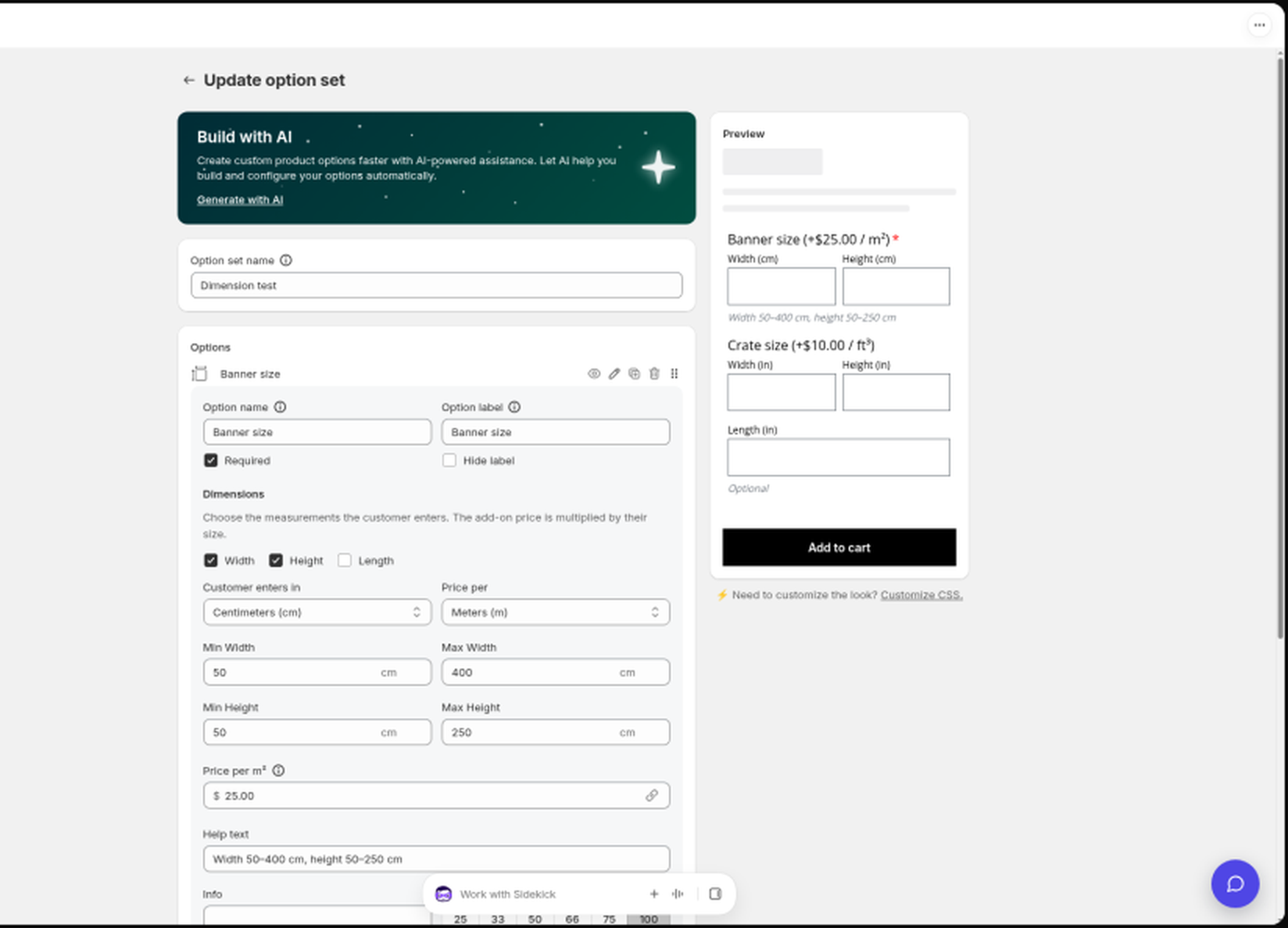
The amount charged is rate × entered size. Example: 100 × 200 cm at $25 / m² adds $50.00. See Option types you can add.
How customers see it
When the customer adds the product to the cart, each selected add-on appears as its own line item at checkout with its price. The order in your Shopify admin shows the main product plus the add-on items, so fulfillment always knows what was purchased.
Things to know
- Add-on prices are set in your store's base currency. If you sell in other countries with Shopify Markets, each add-on is charged at that market's catalog price, so any price adjustment and rounding rule you set for the market applies to it. The amount shown on the product page is the amount charged.
- Shopify discounts that cover the main product also reduce its add-on prices, because Shopify spreads the discount across the bundled items. See Shopify discounts are applied to my add-on prices.
- Shopify Tax on paid add-ons follows Add-on products require shipping in Settings. Keep it on (the default) if you sell physical products, so tax is charged on add-ons the same way as the main product. Turn it off only if your add-ons are services or digital goods. With it on, add-on lines may also appear in your shipping profile and in 3PL or fulfillment apps. See Add-on products require shipping for that and for how existing add-on products update.
- When a value uses product linking instead of a typed add-on price, Optionize snapshots the linked product's price on save. After you change that product's price in Shopify, save the option set again so the new amount is charged.
- Optionize creates hidden helper products in your store to make add-on charges work. Don't delete them; see Hidden Optionize products in my Shopify admin.
- To raise or lower many add-on prices at once, use the bulk price adjustment tool. See Bulk edit option sets and adjust prices.
If the displayed product price is not updating when a paid value is selected, see Add-on price not added to the product price.