Show or hide options with conditional logic
Conditional logic shows or hides an option based on what the customer picked in other options. For example, only show a "Gift message" text area when the "Gift wrapping" checkbox is ticked. This feature is available on the Pro plan.
Add conditional logic to an option
- Open your option set and select the option you want to show or hide.
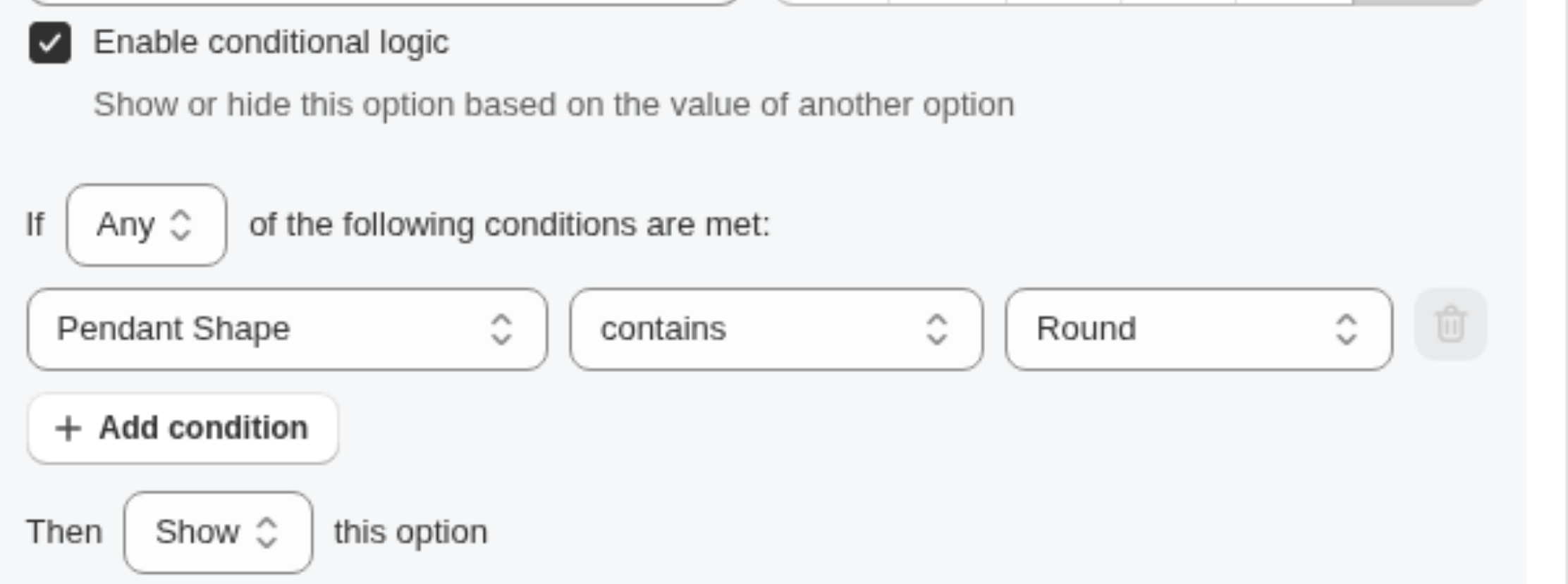
- Turn on Enable conditional logic in the option's settings.
- Choose the action: Show or Hide this option when the conditions are met.
- Add one or more conditions. Each condition points at another option in the set and compares its value.
- If you add several conditions, choose whether Any of them or All of them must match.
- Save the option set.
Available operators
| Operator | Matches when the other option's value... |
|---|---|
| is equal to | exactly matches |
| is not equal to | does not match |
| contains | includes the text |
| does not contain | does not include the text |
| is greater than | is a larger number |
| is less than | is a smaller number |
Tips
- The option you reference in a condition must come from the same option set.
- Be careful combining Required with conditional logic. A required option that is hidden while still empty can prevent the customer from adding to cart. Give conditionally shown options a default value, or leave them optional.
- Test your logic with the live preview before saving, and again on the storefront.
- You can chain logic: option C can depend on option B, which depends on option A.