Import and export option sets
Export option sets as a file and import them into another store, or keep them as a backup. This feature is available on the Pro plan.
Typical uses: copying your setup from a test store to your live store, sharing option sets between stores you run, or backing up before a big change.
Export option sets
- Go to Option sets.
- Select the option sets you want to export using the checkboxes.
- In the bulk actions, choose Export. A JSON file downloads to your computer.
You can also export all option sets at once by selecting all.
Import option sets
- Go to Option sets.
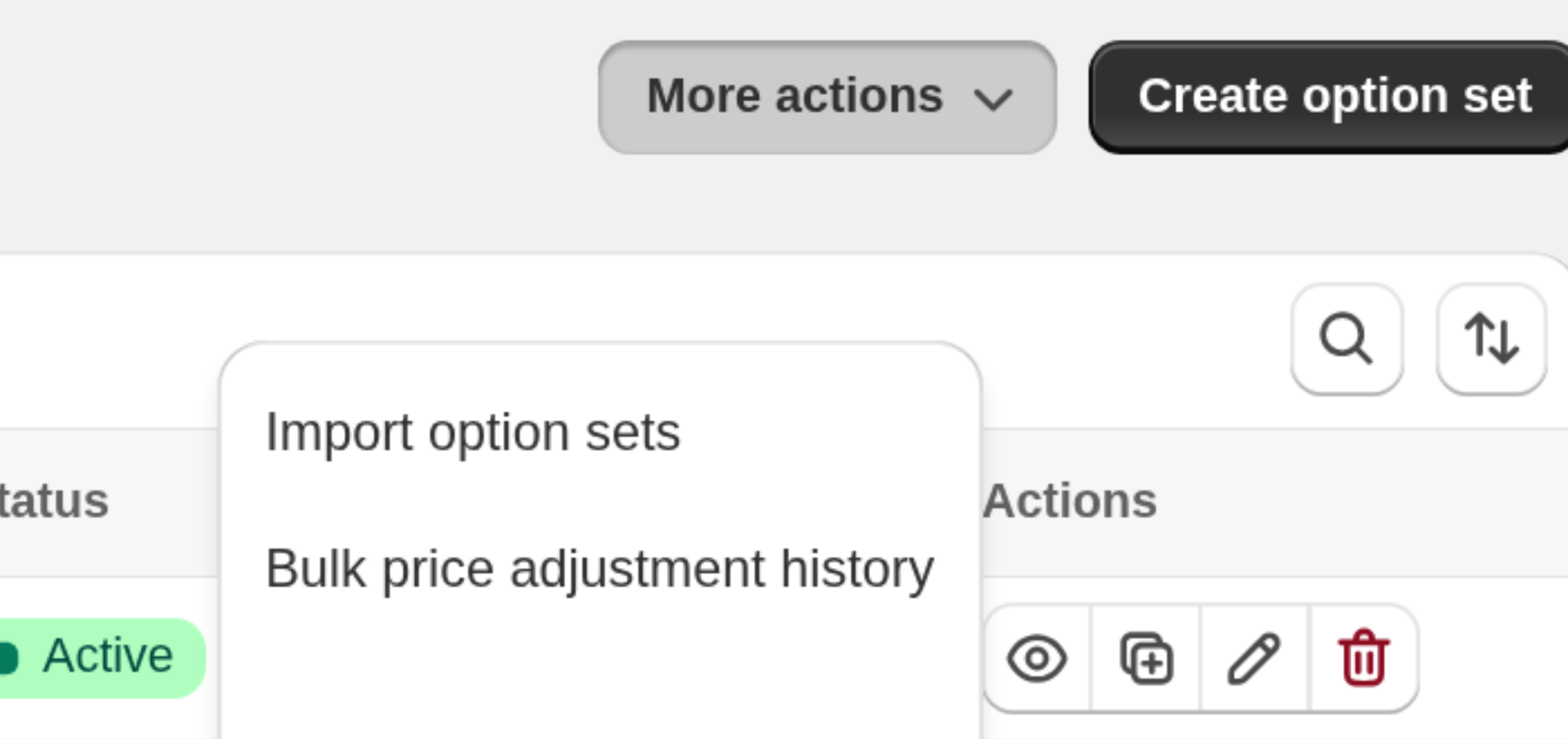
- Open the More actions menu and choose Import option sets.
- Upload the JSON file you exported earlier.
- The imported option sets appear in your list.
After importing into a different store
Product IDs are unique to each store, so product assignments from the source store won't match products in the destination store.
After every import, open each imported option set and re-check:
- the assigned products or conditions
- any linked add-on products on option values
The app shows a banner reminding you of this after an import.