Choose which products an option set applies to
Each option set is assigned to products, and the options render on those products' pages. This article explains the three targeting modes and what happens when more than one option set matches the same product.
Pick a targeting mode
Open your option set and choose one of:
- All products: the option set shows on every product in your store.
- Specific products: hand-pick the products.
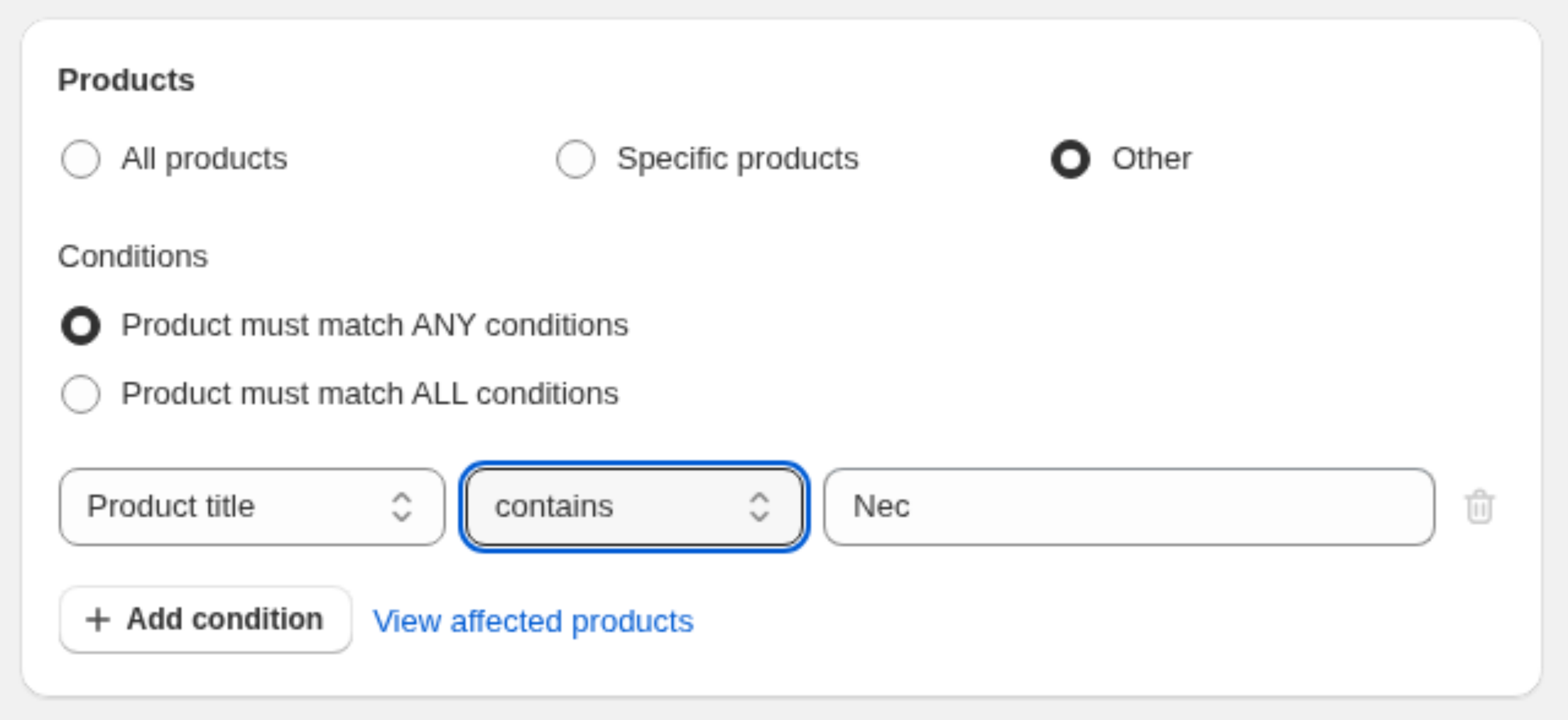
- Other: target products dynamically based on conditions.
Target by conditions
Choose Other to keep assignments up to date automatically. A new product that matches your rules gets the option set with no extra work.
- In the Products section, select Other.
- Add one or more conditions using these fields: Collection, Product title, Product type, Product vendor, Product price, or Product tags.
- Pick an operator for each: equals, not equals, contains, not contains, greater than, or less than.
- Choose whether products must match ANY conditions or ALL conditions.
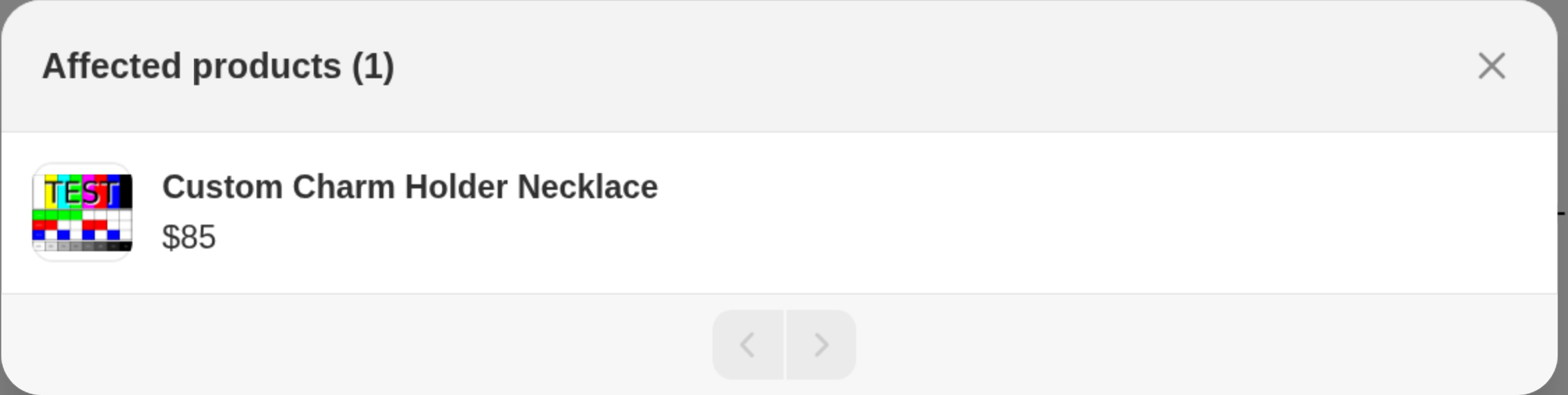
- Click View affected products to preview exactly which products will get the options.
If you delete a Shopify collection that an Other set still references, Optionize removes that collection condition for you so it does not keep matching nothing. Other option sets on the shop keep updating normally. Add a new condition (or change targeting) if you still want those products covered.
Only one option set shows per product
A product page always renders exactly one option set. That's not a limitation in practice, because a single option set can hold unlimited options: put everything the product needs into its one set.
When more than one option set matches a product, Optionize picks the winner by targeting mode:
- A set that targets the product via Specific products wins over everything.
- Otherwise, a set that matches it by Other (conditions).
- Otherwise, a set targeting All products.
If two sets match at the same level (for example, two condition-based sets that both cover the product), the one you saved most recently wins and the other is ignored.
A useful pattern: one All products set for store-wide extras like gift wrapping, then a Specific products or condition-based set for products that need their own options. Just remember the specific set fully replaces the store-wide one on those products, so copy any store-wide options into it too.
After saving
Changes take effect on your storefront right away. Open an affected product page to confirm. If nothing shows, check that the app embed is enabled; see Set up Optionize on your store.