Start from a template
Templates are pre-built option sets for common use cases. Starting from one saves you from building every option by hand, and you can customize everything afterward.
Use a template
- In the app, go to Option sets and start creating a new option set.
- Open the templates gallery and browse the available templates.
- Pick one. The option set editor loads with all of the template's options in place.
- Rename, reorder, add, or remove options to fit your product.
- Assign your products and save.
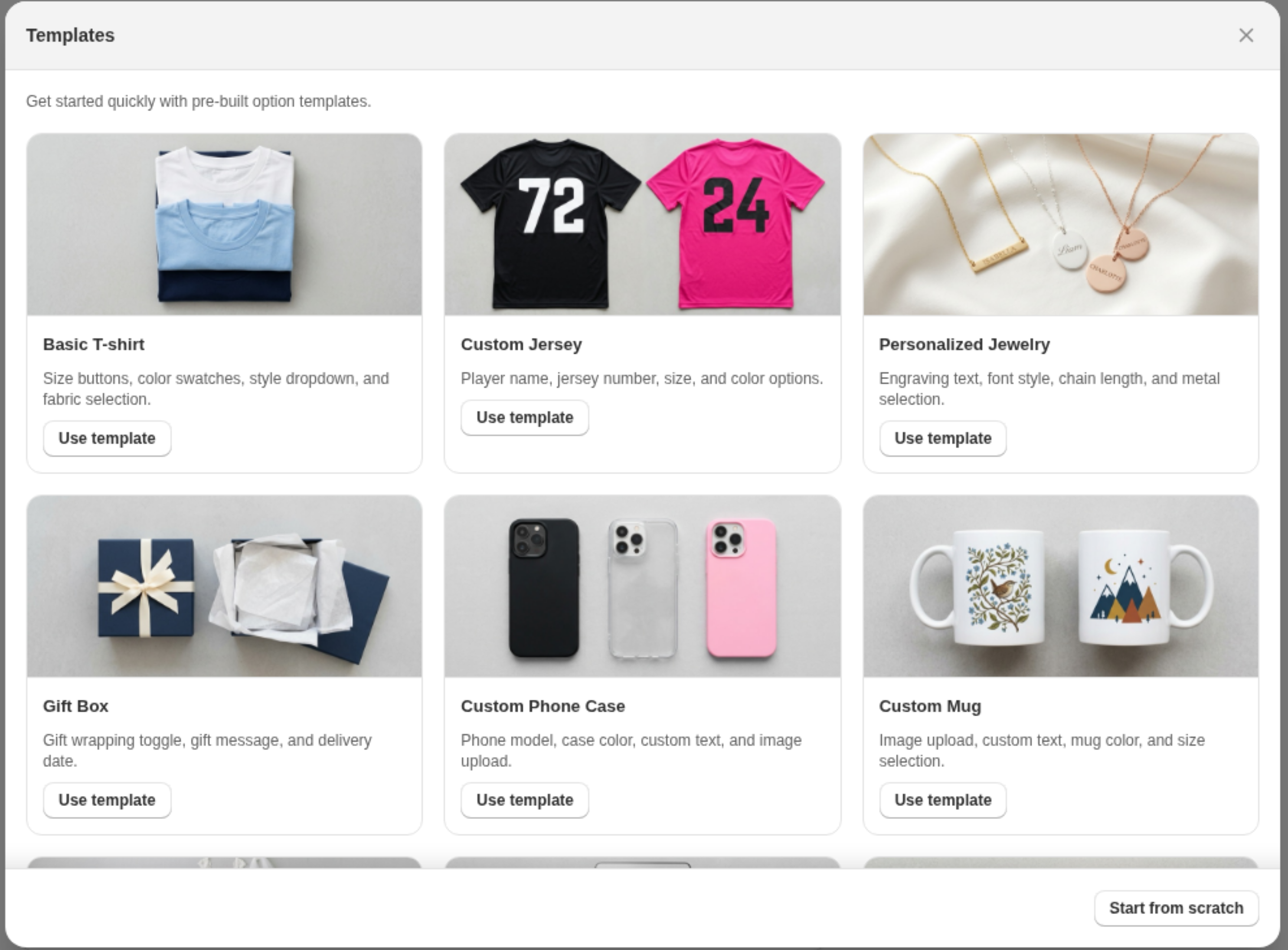
Available templates
| Template | What's inside |
|---|---|
| Basic T-shirt | Size buttons, color swatches, style dropdown, fabric choice |
| Custom Jersey | Player name, jersey number, size, color |
| Personalized Jewelry | Engraving text, font style, chain length, metal |
| Gift Box | Gift wrapping toggle, gift message, delivery date |
| Custom Phone Case | Phone model, case color, custom text, image upload |
| Custom Mug | Image upload, custom text, mug color, size |
| Wedding Dress | Size, color, veil length, rush order, special requests |
| Product Bundle | Add-on checkboxes with pricing, warranty, order notes |
| Order Note | Order note, delivery date, contact email |
Some templates include add-on prices on their values. Those prices only apply on the Pro plan; on Free the options still work, just without the surcharge. See Charge add-on prices for options.