Import and export reviews via CSV
Moving to WiseReviews from another review app? Import your existing reviews from a CSV file. You can also export your reviews to CSV any time for a backup or analysis.
Import creates new reviews only
CSV import adds new reviews. It does not update reviews that are already in WiseReviews.
Do not export your reviews, change dates or names in the spreadsheet, and re-import that file to “bulk edit.” Each row becomes a new review, so you get duplicates.
To change a review's date, name, or other fields after it is already in the app:
- Ask Support to unlock review management if Edit is locked.
- On the Reviews page, select exactly one review.
- Click Edit in the action bar above the list (not under More actions).
There is no bulk date or name update via CSV. Full steps: Manage your reviews.
Importing reviews from CSV
- In WiseReviews, go to Reviews, open More actions, and click Import via CSV.
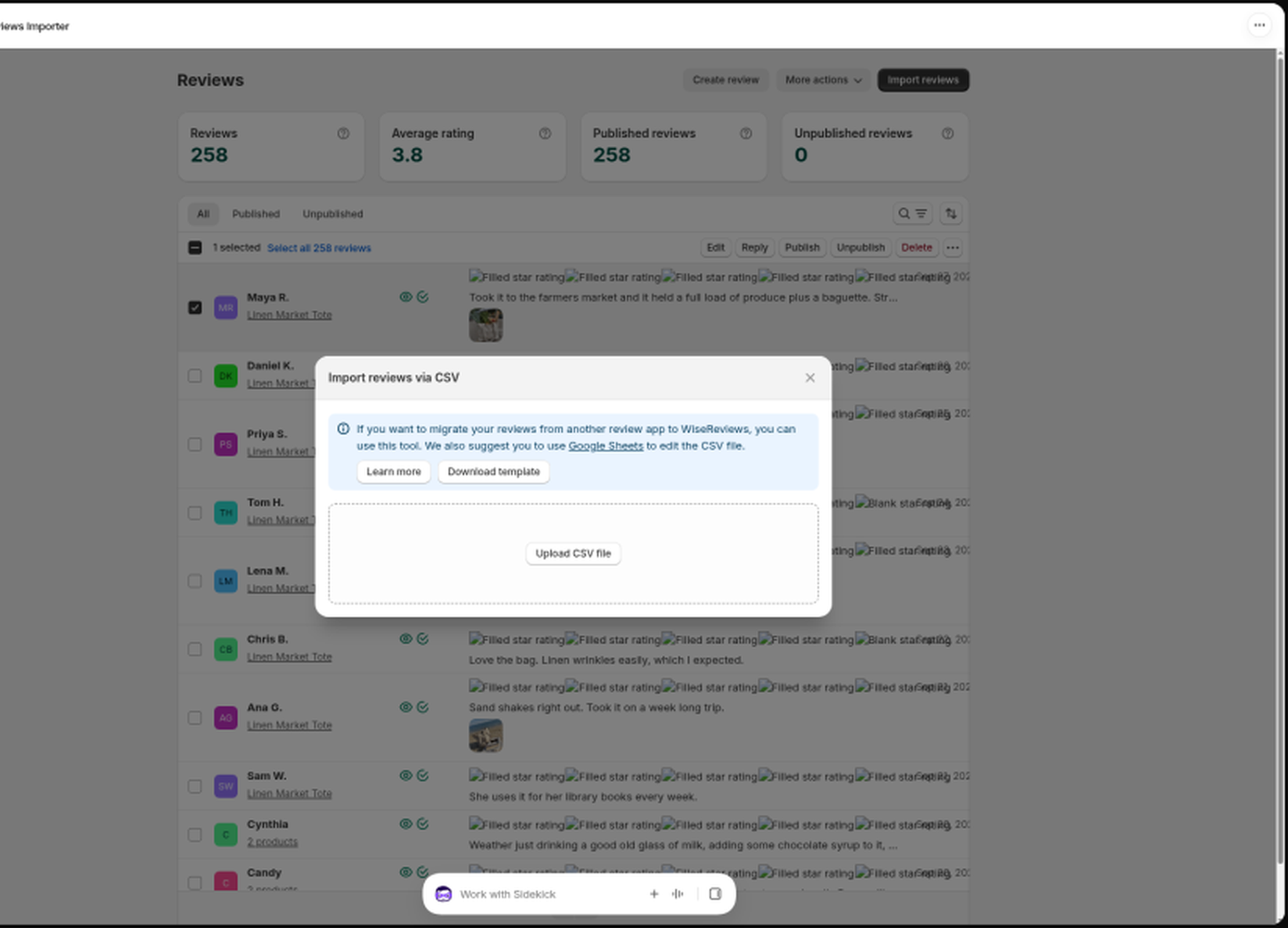
- Click Download template to get a sample spreadsheet, or export a CSV from your previous review app. We suggest editing the file in Google Sheets.
- Click Upload CSV file and pick your file. It must be a CSV with up to 3,000 rows; split larger files into batches.
- If your first row contains column names, keep The CSV file contains headers checked so it is skipped.
- Map your columns to the WiseReviews fields. For each field, pick the CSV column that holds that data. Product handle, Rating, Review date, and Reviewer name are required; optional fields can be set to Not applicable.
- Click Import.
Tips for a clean import:
- Product handle must match a product in your Shopify store (the handle is the last part of the product URL, like
blue-t-shirt). To put one review on several products, put up to 5 comma-separated handles in the same cell (for exampleblue-t-shirt,red-hoodie,green-cap). If you see "The product handle is invalid", check the handle in Shopify admin and fix it in the spreadsheet, then import again. - Rating must be a number from 1 to 5.
- Media URLs can hold several image or video links separated by commas.
- If a review is missing a rating, date, or name, sensible defaults are used (5 stars, today's date, an anonymized name).
Imported rows count toward your plan's hold limit (100 on Free, 50,000 on Standard, unlimited on Plus). On Free, unpublished reviews count toward that 100 as well. If your file has more rows than you have room left, only the rows that fit are imported and the rest are skipped, so check your remaining allowance before a big import.
If your store is already at the hold limit, the CSV modal shows an upgrade banner and disables upload and import. A plan limit is explained on its own; it is not shown as a problem with your CSV file. Click Upgrade plan on the banner to open Plans.
CSV uploads do not spend the Free plan's lifetime marketplace import allowance. That allowance only applies to marketplace URL imports and the Chrome extension. See Import reviews from AliExpress and other marketplaces and Plans and pricing.
Exporting reviews to CSV
Exporting requires the Standard or Plus plan.
Use export for a backup or analysis. Exporting and re-importing the same reviews does not update them. It creates new copies. See Import creates new reviews only above.
- Go to Reviews and select the reviews you want to export. Use the tabs and filters first to narrow down the list, then select all.
- In the actions menu, click Export reviews.
- Confirm the Email address (it is pre-filled with your shop email) and click Send email.
The CSV file is emailed to you, so large exports don't tie up your browser. Exports use UTF-8 with a BOM so Excel opens accented characters correctly.
Each row includes these columns:
- Media URLs (image and video links, comma-separated when a review has more than one)
- Product ID/Handle (every product the review is on, joined with
,when there is more than one) - Title
- Body
- Shop Reply
- Rating
- Status
- Source
- Reviewer Name
- Reviewer Email
- Reviewer Image Url
- IP Address
- Featured
- Helpful Count
- Date
Exports include media URLs. If you need the images themselves, download them from those links.
Still stuck? Message us from the chat widget and we'll help.