Show star ratings on your collection pages
Show a star rating under every product in your collection grid, so shoppers see social proof while they browse.
Shopify does not allow app blocks inside product cards on collection pages, so this can't be done from the theme editor. It's a Shopify platform limitation, not a WiseReviews one. Instead, you add a small snippet to your theme code. It's a copy-paste job, and the same method works for product cards on your homepage and in search results.
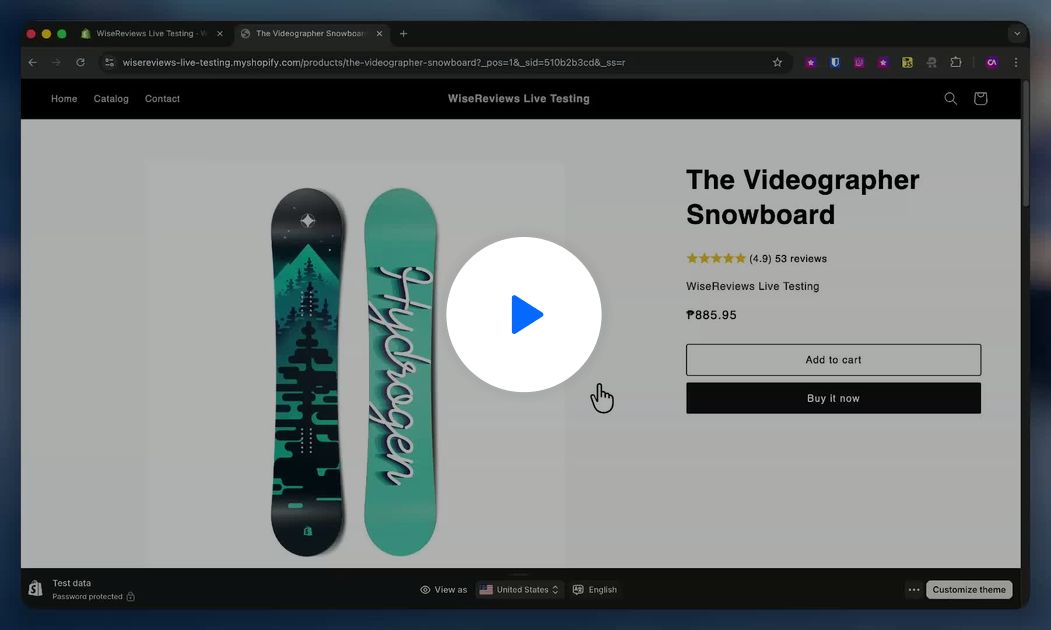
Prerequisites
- The WiseReviews app embed must be enabled. See Install the review widgets on your store.
- Products need published reviews for stars to show.
- Basic comfort editing theme code. Not comfortable? Message us from the chat widget and we'll help you set it up.
Step 1: Create the star rating snippet
- In your Shopify admin, go to Online Store → Themes, click the ⋯ button on your live theme, and choose Edit code. Consider duplicating your theme first as a backup.
- In the Snippets folder, click Add a new snippet and name it
wise-star-rating. - Paste this code and click Save:
<wise-star-rating
  {% capture productID %}{{ product.id }}{% endcapture %}
  data-average-rating="{{ shop.metafields.wisereviews.reviews.value.products[productID].average_rating }}"
  data-reviews-count="{{ shop.metafields.wisereviews.reviews.value.products[productID].reviews_count }}"
  data-star-size="{{ star_size | default: 16 }}"
  data-align="{{ align | default: 'left' }}"
></wise-star-rating>
Step 2: Render it inside your product card
- Open the snippet that renders one product card in the grid. In most themes (like Dawn) it's
snippets/card-product.liquid. Other common names:product-card.liquid,product-grid-item.liquid, orproduct-item.liquid. - Paste this line where you want the stars to appear (usually right below the product title):
{% render 'wise-star-rating', product: card_product, star_size: '16', align: 'left' %}
- If your card snippet names its product variable something other than
card_product, use that instead (search the file for.titleto find it;product.titlemeans passproduct: product). - Click Save, then open a collection page on your storefront to check the result.
Adjust the look
- star_size: star size in pixels (the product-page default is 18; 14 to 16 usually fits product cards).
- align:
left,center, orright. - The star color and rating format follow your normal widget settings; see Customize the review widgets. With Hide star rating if no reviews available enabled, products without reviews show nothing instead of empty stars.
The ratings come straight from your store's data with no extra network requests, so your collection pages stay fast.
Still stuck? Message us from the chat widget and we'll help.