Install the review widgets on your store
Add the WiseReviews widgets to your theme so customers can see and write reviews on your storefront. This takes two steps: enable the app embed, then add the widget blocks to your theme.
Open the widget installer
- In WiseReviews, go to Settings → Other settings.
- Under Install review widgets, click Open widget installer.
You can also get here from the Setup guide on the Home page: Install review widgets → Install widgets. After an import finishes, the installer also opens on its own when the widgets are not live on your published theme yet.
Each step shows an Active or Inactive badge that reads your published theme, so you can see what is already done without hunting through the theme editor. The badges refresh about every 30 seconds while the WiseReviews tab is open, and when you come back after making a change. The Home page Setup guide uses the same check: once the app embed is on and at least one widget block is placed, that step marks itself done.
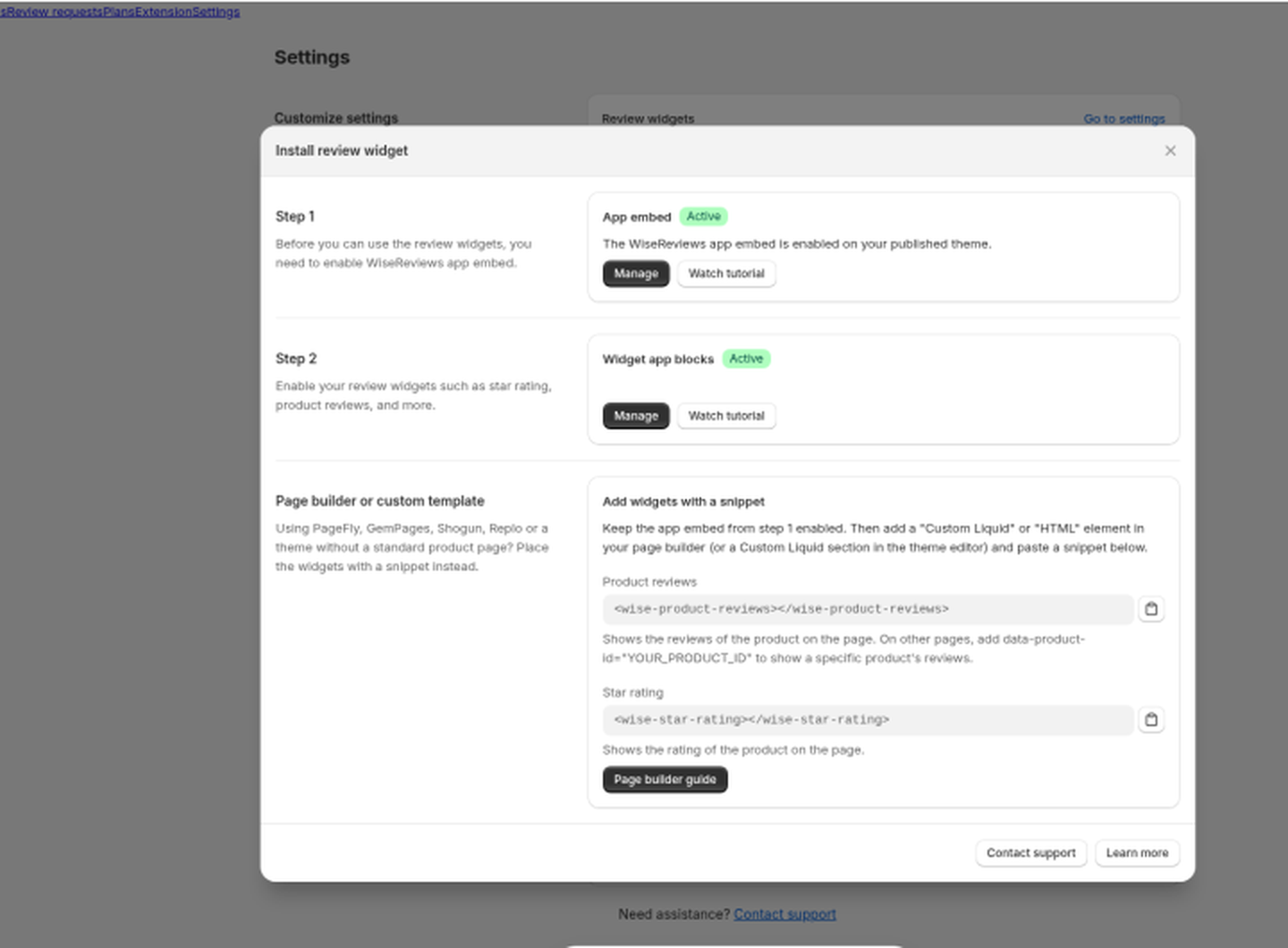
Step 1: Enable the app embed
The app embed loads the widget code on your storefront. Widgets will not appear until it is enabled.
- In the installer, under App embed, click Enable app embed. The Shopify theme editor opens in a new tab with the WiseReviews app embed already switched on.
- Click Save in the theme editor.
- Go back to the WiseReviews tab. The badge changes to Active.
Once the step is active, the button reads Manage instead, and takes you to the same place if you want to change the app embed settings later.
Keep the App embed Active. Product blocks alone are not enough when the embed is required. PageSpeed Insights or Lighthouse may flag App embed CSS or JS as render-blocking. That is expected with the current design. Supported tips (including Lazy load reviews) are in PageSpeed or Lighthouse flags WiseReviews CSS or JS.
Step 2: Add the widget blocks
- Back in the installer, under Widget app blocks, click Enable app blocks. The theme editor opens on a product page with the Product Reviews block already added. It arrives in its own section, so the reviews list gets the full width of the page instead of your product section's narrow column.
- Drag it where you want it, then click Save.
- To add more widgets, click Add block in the section where you want one, then pick a WiseReviews block under Apps:
- Product Reviews: the full reviews list with a write-a-review form, shown on product pages.
- Star Rating: the average rating and review count, usually placed near the product title.
- Featured Reviews: a carousel of the reviews you marked as featured. You can add this on any page, like your home page.
This step turns Active once your published theme has a Product Reviews or Star Rating block on a product template.
The Star Rating block also works on collection pages, so shoppers see ratings while browsing.
If you move Product Reviews into a custom flex section and it runs off the edge on phones, see Product Reviews block cut off on phones.
Leave Product empty on product pages
On your Default product template (and any other product template), leave the Product picker empty on both Product Reviews and Star Rating.
- In the theme editor, select the Product Reviews or Star Rating block.
- In the block settings, clear Product if a product is selected.
- Click Save.
When Product is empty, each product page shows that product's own reviews and rating. If you pick a product, every product page shows that same product's reviews. The theme editor warns: "Selecting a product will show the same reviews for all products."
You do not need to delete or re-import reviews to fix this. Clearing Product is enough.
On a homepage, landing page, or dedicated reviews page, picking a product (or leaving it empty for all products) is intentional. See Show reviews on your homepage and other pages.
Choose the default Product or Shop tab
Which list opens first is a setting on the Product Reviews block, not in Review widgets settings. The hide toggles under Product reviews do not change it.
- In the theme editor, select the Product Reviews block.
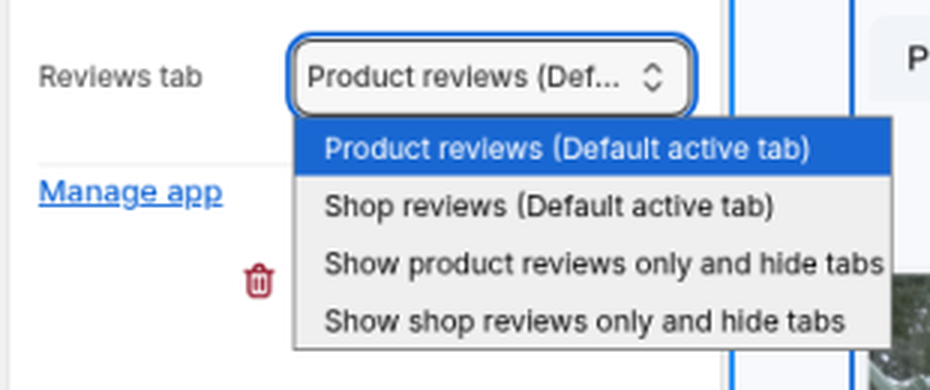
- Set Reviews tab to one of these:
- Product reviews (Default active tab). Product reviews open first. This is the starting choice.
- Shop reviews (Default active tab). Shop reviews open first.
- Show product reviews only and hide tabs.
- Show shop reviews only and hide tabs.
- Click Save.
On an older theme without app blocks, set the same choice in Liquid with default_type on the product-reviews snippet. See Install widgets on older themes without app blocks.
A page-builder snippet of <wise-product-reviews></wise-product-reviews> opens product reviews. To change that, add data-default-type with one of product_reviews, shop_reviews, product_reviews_only, or shop_reviews_only.
If you use a page builder or custom template
Shopify's theme editor often cannot add app blocks to a page-builder product template (GemPages templates are usually named something like gp-template) or to a custom product template without app-block support.
Keep the WiseReviews app embed on for your published theme. Widgets will not load without it. On product pages, the embed also provides the current product, so the snippets need no product ID and no Liquid.
Copy snippets from the widget installer
- Open the widget installer (Settings → Other settings → Install review widgets → Open widget installer, or from Home: Setup guide → Install review widgets → Install widgets).
- Under Page builder or custom template, open Add widgets with a snippet.
- Copy a plain HTML snippet:
- Product reviews:
<wise-product-reviews></wise-product-reviews> - Star rating:
<wise-star-rating></wise-star-rating>
- Product reviews:
- In your page builder, add a Custom Liquid or HTML element (or a Custom Liquid section in the theme editor), paste the snippet, and publish.
On a product page, both snippets show that product's reviews automatically. On other pages, add data-product-id="…" with the product ID from Shopify admin.
Full walkthrough: Add WiseReviews to PageFly, GemPages, Shogun, Replo or a custom template.
For Featured Reviews on a normal Shopify theme homepage (not a page-builder page), you can still use the theme editor: Add section → Apps → Featured Reviews. Featured Reviews is a section, so pick Add section, not Add block. See Feature your best reviews.
Vintage themes without app blocks use a different path: Install widgets on older themes without app blocks.
Check your storefront
Open a product page on your live store. If you imported or collected reviews, the widgets show them right away.
If something looks off, see Review widgets not showing on your store.
Still stuck? Message us from the chat widget and we'll help.