Customize the review widgets
Match the review widgets to your store's look, layout, and language. All customization happens in one place, and changes apply to your storefront when you save.
Go to Settings, then under Review widgets click Go to settings to open Review widgets settings. You can also get there from the Setup guide by clicking Customize widgets.
Make sure the widgets are installed first: see Install the review widgets on your store.
General
Settings that apply to every widget:
- Primary color and Theme (Light or Dark) to match your brand.
- Star color: pick any color for the rating stars.
- Toggles like Show review date, Show review title, Lazy load reviews, and Hide reviewer photo.
- Review date format: choose how review dates read on your storefront.
Lazy load reviews
Lazy load reviews delays fetching review content until it is needed on the page. Turn it on when you want that timing help.
It does not remove App embed CSS or JS from the critical path. PageSpeed Insights or Lighthouse may still flag those files as render-blocking while the App embed is Active. That is expected. Keep the App embed on. Do not manually defer or remove embed assets in your theme. Details: PageSpeed or Lighthouse flags WiseReviews CSS or JS.
Review date format
Turn on Show review date and a Review date format dropdown appears right under it. Each option is labelled with a sample date, so you can see how it reads before you save:
- Aug 24, 2026: short month name. This is the default, so your storefront keeps the dates it already shows until you pick something else.
- August 24, 2026: full month name.
- 08/24/2026: month, day, year. Common in the US.
- 24/08/2026: day, month, year. Common in most other countries.
- 2026-08-24: year, month, day.
Month names always show in English. If you need dates in another language, pick one of the number formats.
Save, then refresh a product page to see the new format. Dates on your storefront can take up to an hour to change, because reviews are cached for speed.
Product reviews
Controls for the main reviews widget on product pages:
- Layout: Grid or List.
- Reviews per page on mobile and on desktop.
- Default sort by: Recommended, Latest first, Oldest first, Highest rating, Lowest rating, or Most helpful.
- No reviews display mode: what to show when a product has no reviews yet (the full widget, nothing, or just the write-a-review button).
- Hide toggles for the reviews summary, rating breakdown, media, the sort dropdown, and more.
- Card border: Shadow, Solid, or Plain.
Which tab opens first is not one of these hide toggles. On an Online Store 2.0 theme, select the Product Reviews block in the theme editor and set Reviews tab. See Install the review widgets on your store.
Star rating
- Hide star rating if no reviews available.
- Desktop format and Mobile format: choose how the rating line next to the stars reads on each screen size:
| Option | Example on the storefront | Default |
|---|---|---|
| ⭐⭐⭐⭐⭐ 1200 reviews | 1200 reviews | Desktop default |
| ⭐⭐⭐⭐⭐ 4.9 | 4.9 | |
| ⭐⭐⭐⭐⭐ (4.9) 1200 reviews | (4.9) 1200 reviews | |
| ⭐⭐⭐⭐⭐ 4.9 based on 1200 reviews | 4.9 based on 1200 reviews | |
| ⭐⭐⭐⭐⭐ 1.2k | 1200, or 1.2k when the count is 1,000 or more | Mobile default |
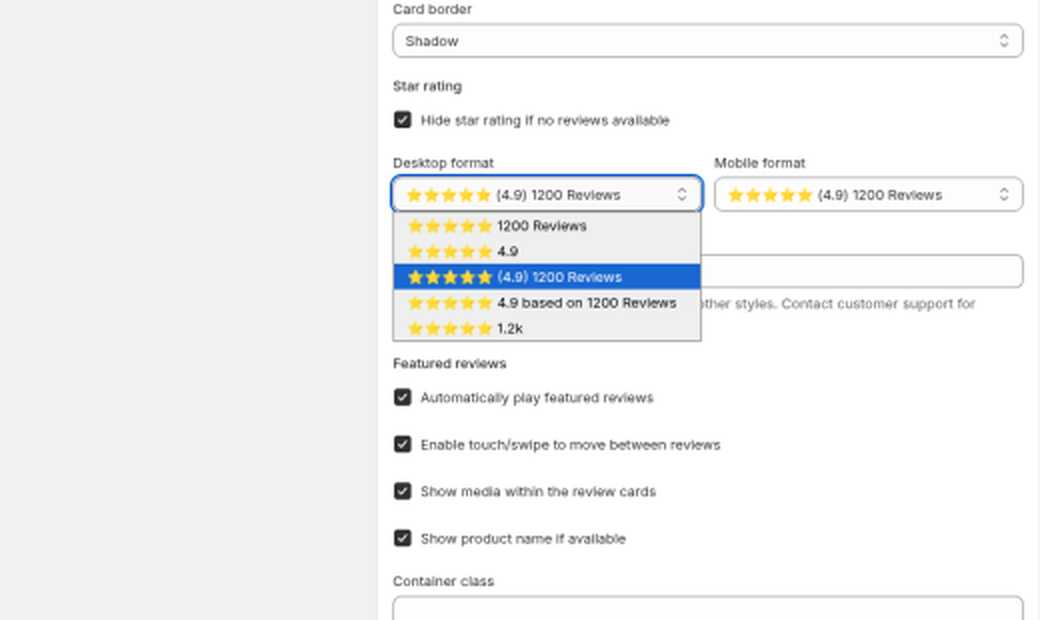
The words "reviews" and "based on" come from Reviews text and Based on text under Text customization. You can edit them there.
A format like 4.9 (1200) is not available. The closest options are the ones listed above.
Featured reviews
- Automatically play featured reviews to make the carousel rotate on its own.
- Enable touch/swipe to move between reviews for mobile visitors.
- Toggles for showing media and the product name on each card.
Text customization
Every label and message in the widgets can be reworded: the "Write a review" button, form labels, the thank-you message, tab names, sort options, and more.
To translate everything at once, click Translate at the top of the Text customization card and pick your language. All widget texts are translated in one go, and you can still fine-tune any field afterwards. Reset to default brings back the original English texts.
Remember to click Save, then refresh your storefront to see the changes.
Still stuck? Message us from the chat widget and we'll help.