Customize the review reply email
When you reply to a review and tick Notify customer via email, the reviewer gets an email with your reply. You can rewrite that email in your store's language and change its subject.
The same email goes out when Magic reply answers a new review automatically, so one design covers both.
Open the Review reply email settings
- In WiseReviews, go to Settings.
- Click Review reply email (listed under Rewards).
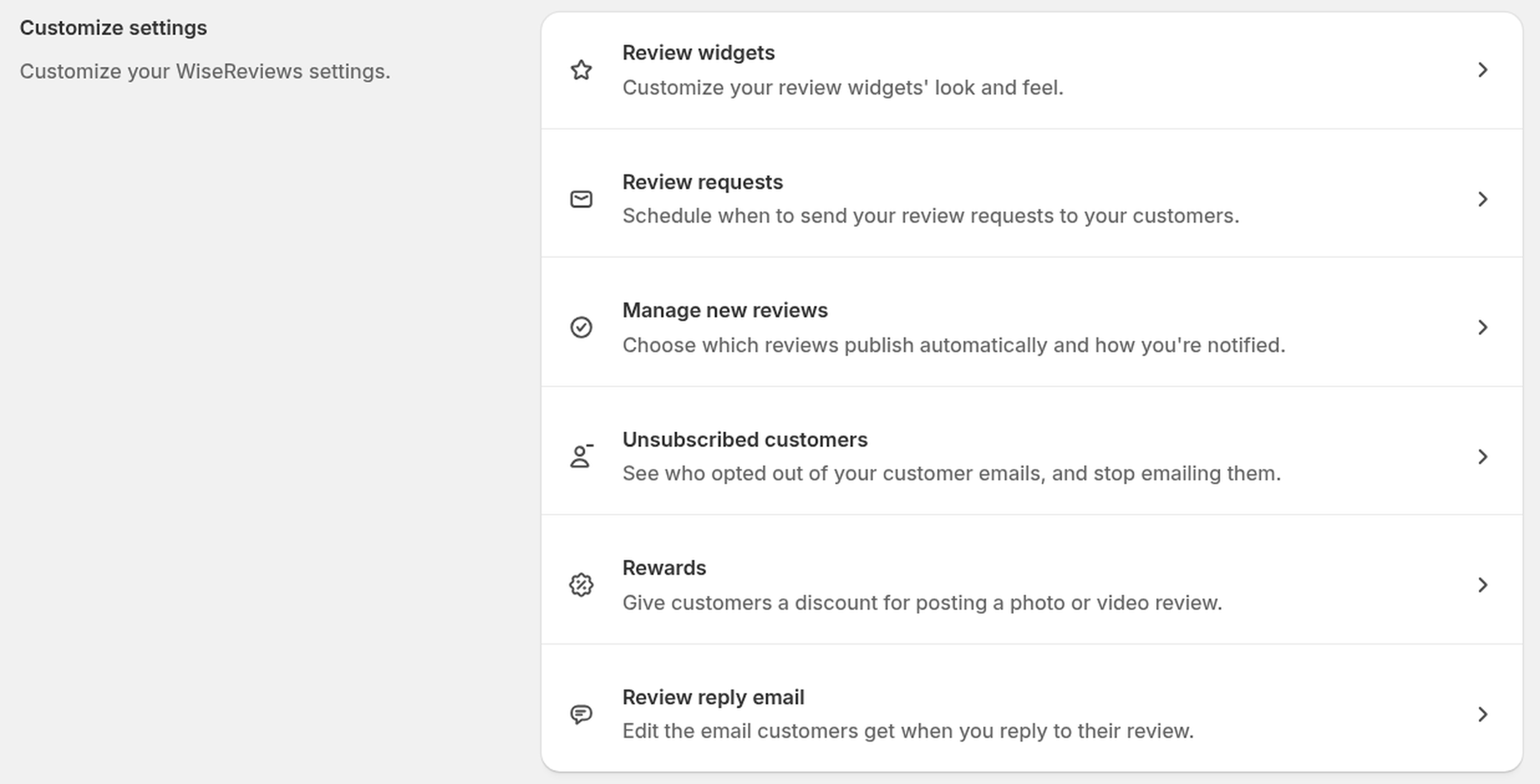
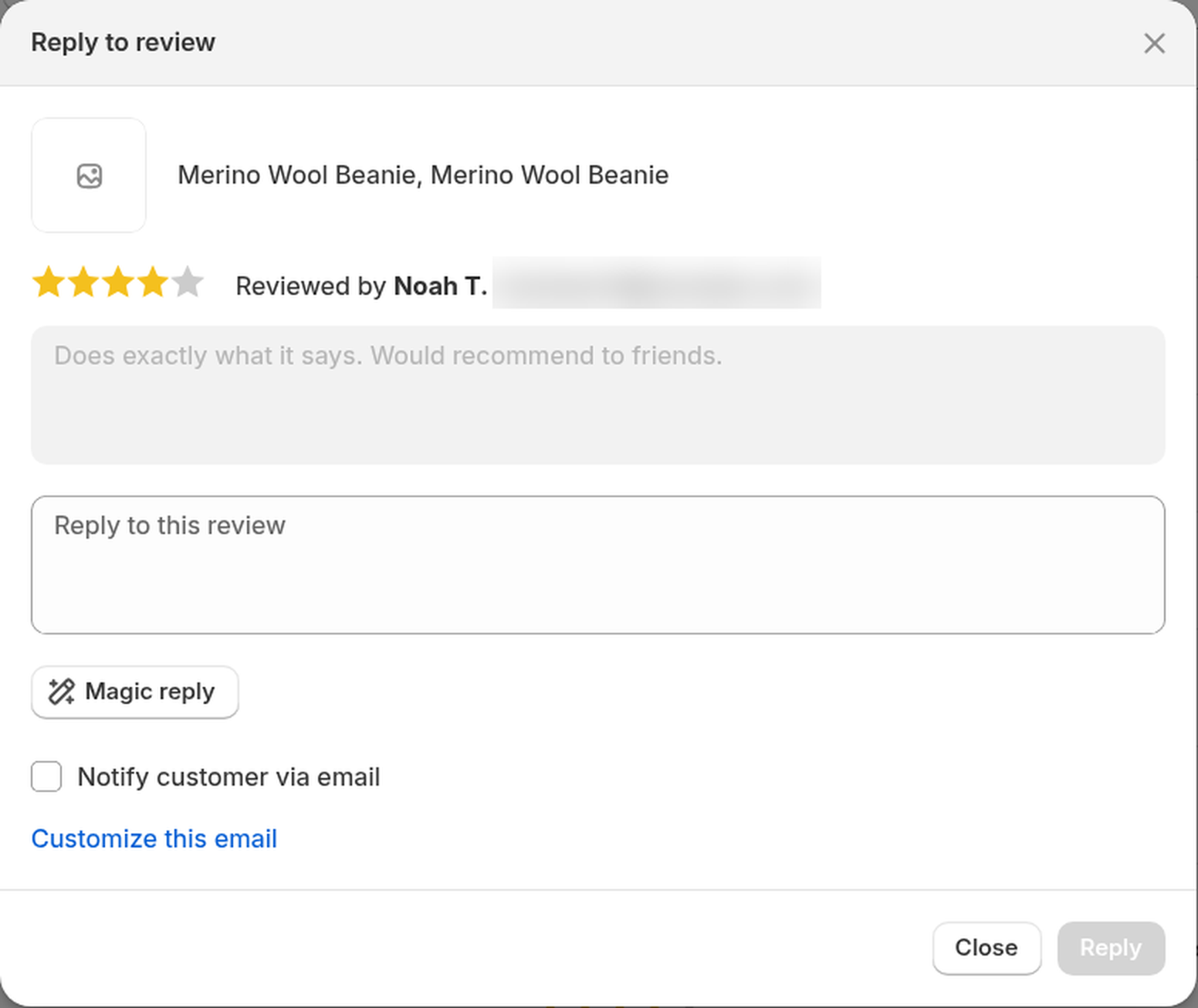
On the Standard or Plus plan, you can also get there from the Reply to review window: under Notify customer via email, click Customize this email. This closes the reply window and discards what you typed, so send your reply first.
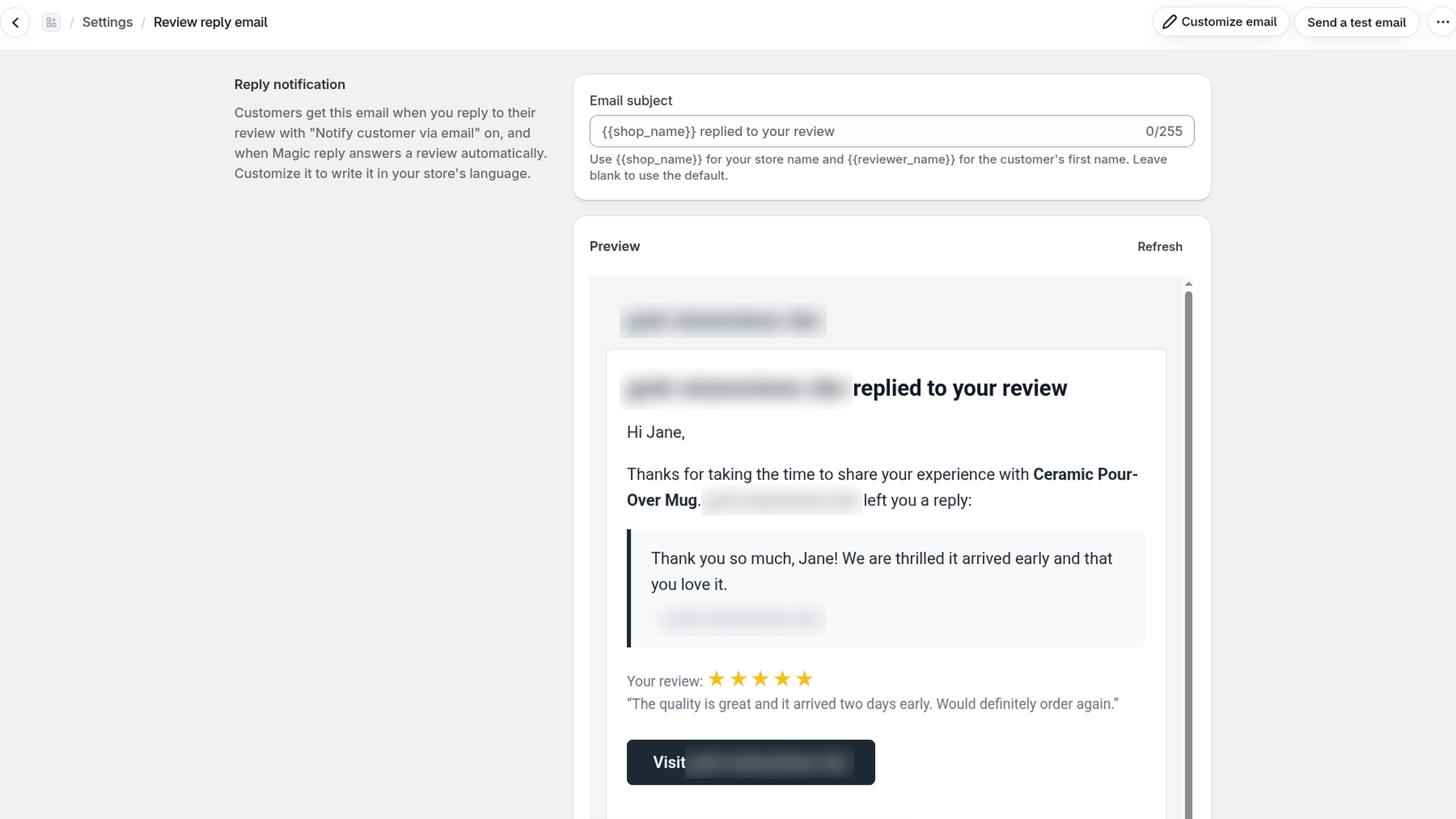
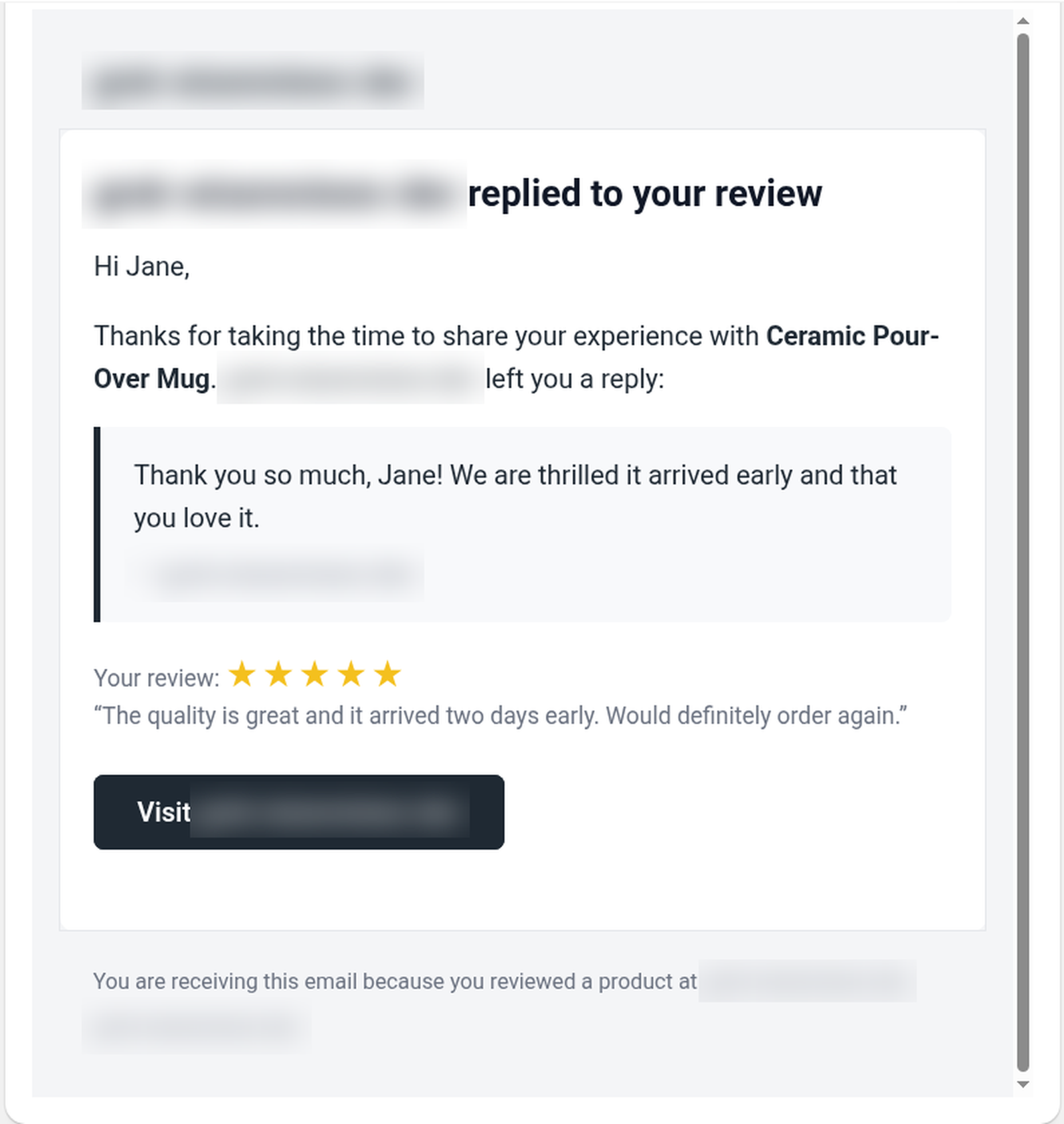
The page shows a preview of the email as customers get it today. Until you save a custom design, that's the built-in English email.
Change the subject
- Type your subject in Email subject. Use
{{shop_name}}for your store name and{{reviewer_name}}for the customer's first name. For example:{{shop_name}} a répondu à votre avis. - Click Save in the save bar.
Leave the field blank to use the default subject, {{shop_name}} replied to your review. A new subject is checked for spam when you save it; subjects that look like account verification, payment requests, or urgent warnings are blocked. If it's rejected, you'll see a message and can reword it.
Customize the email
- On the Review reply email page, click Customize email (top right). This opens the Email editor.
- Edit the text blocks: the heading, the greeting and intro, the "Your review" part, the Visit button, and the footer. Write them in any language.
- Click Save when you finish.
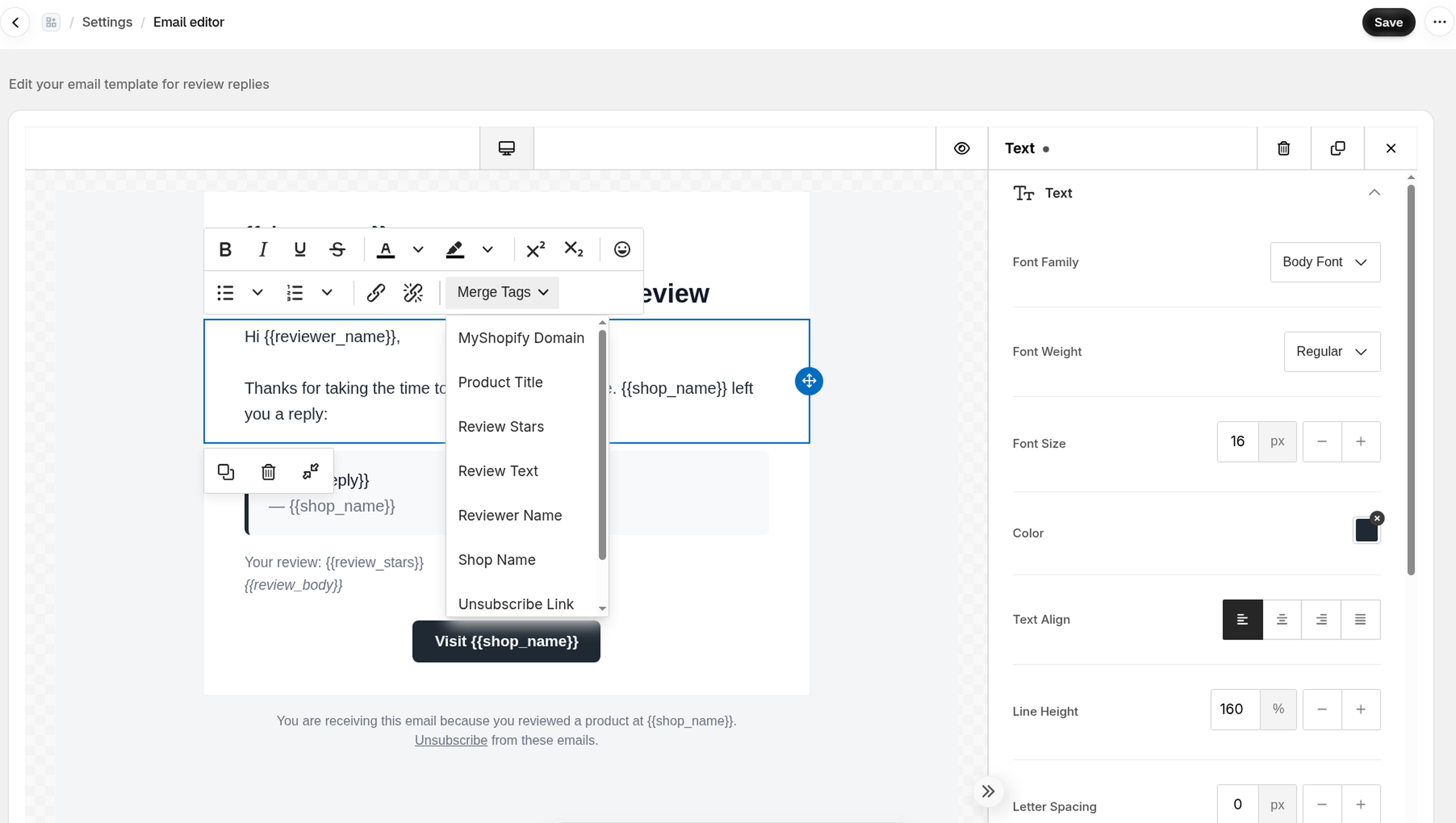
To add a merge tag, click in a text block and pick it from the Merge Tags menu in the text toolbar. You can also type a tag yourself. Edit it like the review request email. These are the tags you can use:
| Merge tag | Becomes |
|---|---|
{{shop_name}} |
Your store name |
{{reviewer_name}} |
The customer's first name |
{{shop_reply}} |
Your reply |
{{review_body}} |
The customer's review text (up to 200 characters) |
{{review_stars}} |
The review's star rating |
{{product_title}} |
The reviewed product's name |
{{myshopify_domain}} |
A link to your store |
{{unsubscribe_url}} |
The customer's unsubscribe link |
Keep {{unsubscribe_url}} in your design so the unsubscribe line is in your language. If you remove it, WiseReviews adds a short English unsubscribe line at the bottom.
Once you save, the preview, test emails, and every reply email use your design, including the plain text version of the email.
Send a test email
- On the Review reply email page, click Send a test email.
- Enter an email address and click Send email.
The test uses a sample review and reply, so you can check the wording before a customer sees it.
Who gets this email
- Manual replies, when you tick Notify customer via email in the Reply to review window. This option needs the Standard or Plus plan, and the reviewer must have left an email address. See Reply to reviews with Magic reply.
- Magic reply auto replies, turned on in Settings → Manage new reviews.
Customers who unsubscribed from WiseReviews emails don't get it. Your reply is still saved on the review.
Still stuck? Message us from the chat widget or email support@gotinker.dev and we'll help.